
Advanced SystemCare review: an AI mode that turns maintenance into two buttons
Version 19.6
Summary
Cleaning, boosting and problem fixing folded into a scan-and-repair pair of buttons, with the four sources of wasted space explained rather than just a number in a popup. The free edition covers the active work; Pro adds upkeep that happens on a schedule.
Recommend- Name
- Advanced SystemCare
- Version
- 19.6
- Open source
- Proprietary
- Operating system
- Windows
- Updated
- 2026-10-03 17:26
The phrase one-click optimisation has been worn out in Windows utilities for so long that many people take it as a synonym for unreliable. But the need behind it never went away: not everyone wants to memorise the location and usage of five or six tools just to clear a cache. Advanced SystemCare is the longest-surviving product in that corner, and its site divides the job into three: clearing junk files to recover storage, lifting the performance of new and old machines alike, and tracing and resolving the usual faults. The current release is 19.6.0, the installer is 60.9 MB, and supported systems run from 11 all the way down to XP.
AI mode: scanning and repairing pressed into two buttons
The workflow is compressed into three steps on the site: start the optimiser, press scan in the care tab with AI mode on, and the program works through the files and items on the machine, then press repair to clear the junk and fix system errors automatically. The only judgement the user has to make happens once, whether to press at all.
The site also explains what the AI mode actually does: it recognises and safely removes temporary, unnecessary and leftover files that Windows and several hundred of the most common programs accumulate over time, and it helps defragment the drive so files open faster. When explaining where space goes, the page names four sources: temporary files left by installers, temporary files produced by the system and by programs, accidentally duplicated files, and caches left by programs and browsers. Explaining the sources is easier to trust than a popup announcing that 8.7GB can be freed.
Four tools, each with its own stretch
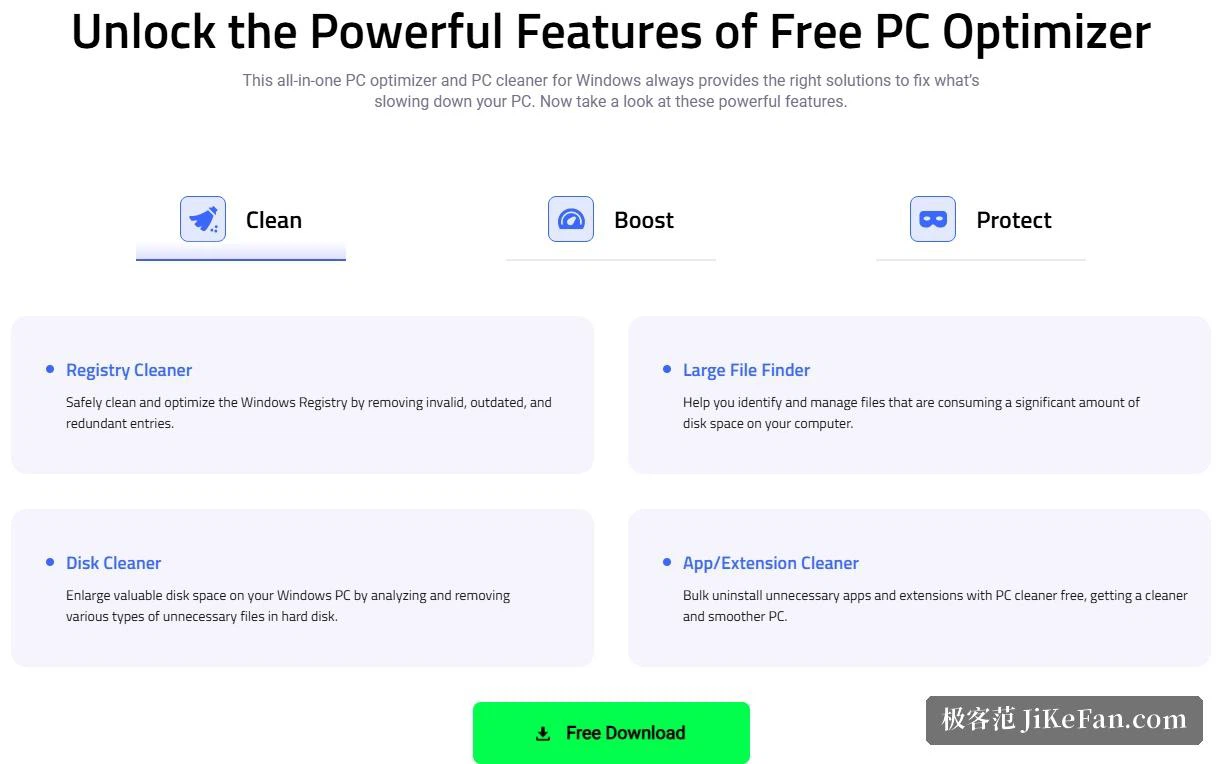
The functions are divided cleanly. A registry cleaner removes invalid, obsolete and redundant entries to clean and optimise the Windows registry safely. A disk cleaner analyses and removes the various unnecessary files on the drive to widen the available space. A large file finder identifies and manages the items eating the most disk space. An app and extension cleaner uninstalls unwanted applications and extensions in batches. The first two clean, the third locates, the fourth removes, and they do not overlap.
The large file finder deserves its own sentence. Most cleaners only say how much junk there is, while what you actually want to know when space runs short is which things take the most, and this tool answers with a list sorted by size, leaving the deletion to you. Keeping it separate from the one-press scan shows the suite leaves a door open for manual confirmation alongside the automation.
How to read the numbers
The site shows a set of comparison figures from internal testing: a laptop left uncleaned for a month gave up 50 GB of junk files, saved 35 seconds of boot time and gained 35% in performance, while unauthorised access to private files and privacy traces fell by twenty thousand and forty thousand items respectively; a second machine produced 25 GB, 18 seconds and 25%. The numbers are handsome, but the page adds a line of its own: results come from the laboratory, are for reference, and real figures vary with the environment.

That disclaimer matters more than the figures. The effect of a cleaner depends heavily on a machine's history, and a half-year-old machine that has never been tidied is not in the same order of magnitude as one maintained every week. Treating the published numbers as an indication of scale rather than a promise is the fairer way to read this kind of marketing.
Where the free edition ends and Pro begins
The FAQ answers the money question directly: yes, it is free for everyone, and it can be upgraded to Pro for the advanced functions. The comparison table on the update page lists what Pro adds: a smarter AI mode with advanced cleaning and optimisation, more thorough cleaning of junk and registry to prevent crashes, disk defragmentation, automatic memory cleaning, maintenance on a schedule, live monitoring of system status, timely software updates, and a one-press full check through the health checker. The security side adds a protected folder, face recognition that photographs anyone trying to get in, blocking of malicious links in web pages, mail and ads, automatic clearing of browsing data with ad blocking, and protection against digital fingerprinting.

On price, the page lists Pro at 14.77 dollars against a crossed-out 29.99, licensed for 1 year on 1 computer, and notes that promotions can change at any time. In practice the free edition covers the active work of cleaning and repair, while Pro adds automatic upkeep, deeper cleaning and privacy protection. For anyone who remembers to tidy a few times a year, the free edition is enough.
The reminders the site gives itself
Several answers in the FAQ are unusually candid. On safety, it says the software is broadly safe but, like any system tool, should be taken from the official site to avoid malware, and recommends creating a system restore point before running a deep clean or a registry optimisation. On frequency, an AI scan can run daily or a few times a week, while deep cleaning and registry cleaning belong to a weekly rhythm or to need, since more often is simply unnecessary.
On antivirus software the answer is that it does not replace one: the product is positioned as an optimiser and a machine health tool, complementary to antivirus, and the edition carrying a full engine is the Ultimate one. On hardware, the stated floor is 512 MB of memory, a processor at 1 GHz or faster, 300 MB of free disk space and a resolution of 1024 by 768 or higher, low enough for old machines to run. One more line is easy to miss: it coexists with most software, but running more than one system utility on the same machine is not advised.
Who it suits, and what to watch
Three groups. The first does not want to study the details, and finds two buttons covering most of routine upkeep without needing to know what a registry is. The second is chronically short of space, and finds the large file finder pointing at the source instead of cleaning blindly. The third runs an old machine, where the low hardware floor and the system support reaching back to XP make it installable and usable.
Three cautions. Create a restore point before registry optimisation, which is the site's own advice rather than caution for its own sake. Treat the test figures as limited in value, since the site itself calls them laboratory results and what a machine yields depends on its history. And do not keep another system utility resident alongside it: the site advises against running more than one, because tools that both edit the registry and the start-up list tend to interfere with each other.
One-click optimisation is criticised often, and the problem was never the single click but the user not knowing what it did. The answer offered here is to give the scan to an AI mode and leave the list and the restore point to the user. Automation and control are not a choice between two, provided the tool is willing to lay out the step in between.