
zTasker: Automation That Waits for a Condition, Not Just a Clock
Summary
zTasker automates small Windows chores with more than a clock: a folder that changes, a processor that gets busy, a window that appears, a key combination pressed. Free, offline, and small enough to carry on a stick.
- Name
- zTasker
- Version
- 2
- Pricing
- Free
- Open source
- Open source
- Updated
- 2026-10-06 16:32
The built-in scheduler exists, and nobody uses it
Every installation of Windows ships with a task scheduler, and the number of people who have opened it voluntarily is small. The reason is not that automation is unpopular; it is that the built-in tool was designed for administrators describing a fleet, so it speaks in terms of triggers, actions, conditions and security contexts, and it answers a question most people never ask. What a person actually wants is to say that when this happens, do that, and to be able to check a year later that it is still doing it.
zTasker is a free automation tool for Windows built around that smaller sentence. The interface is a list of tasks, each with a trigger and an action, created through dialogs rather than through a scripting language. The scope is deliberately domestic: dozens of trigger types, a large catalogue of ready-made actions, and no requirement to write anything to get a useful result. It runs offline, carries no account, and is small enough that the portable build fits on a stick and runs from it.
Time is the trigger everybody understands, and the least interesting one
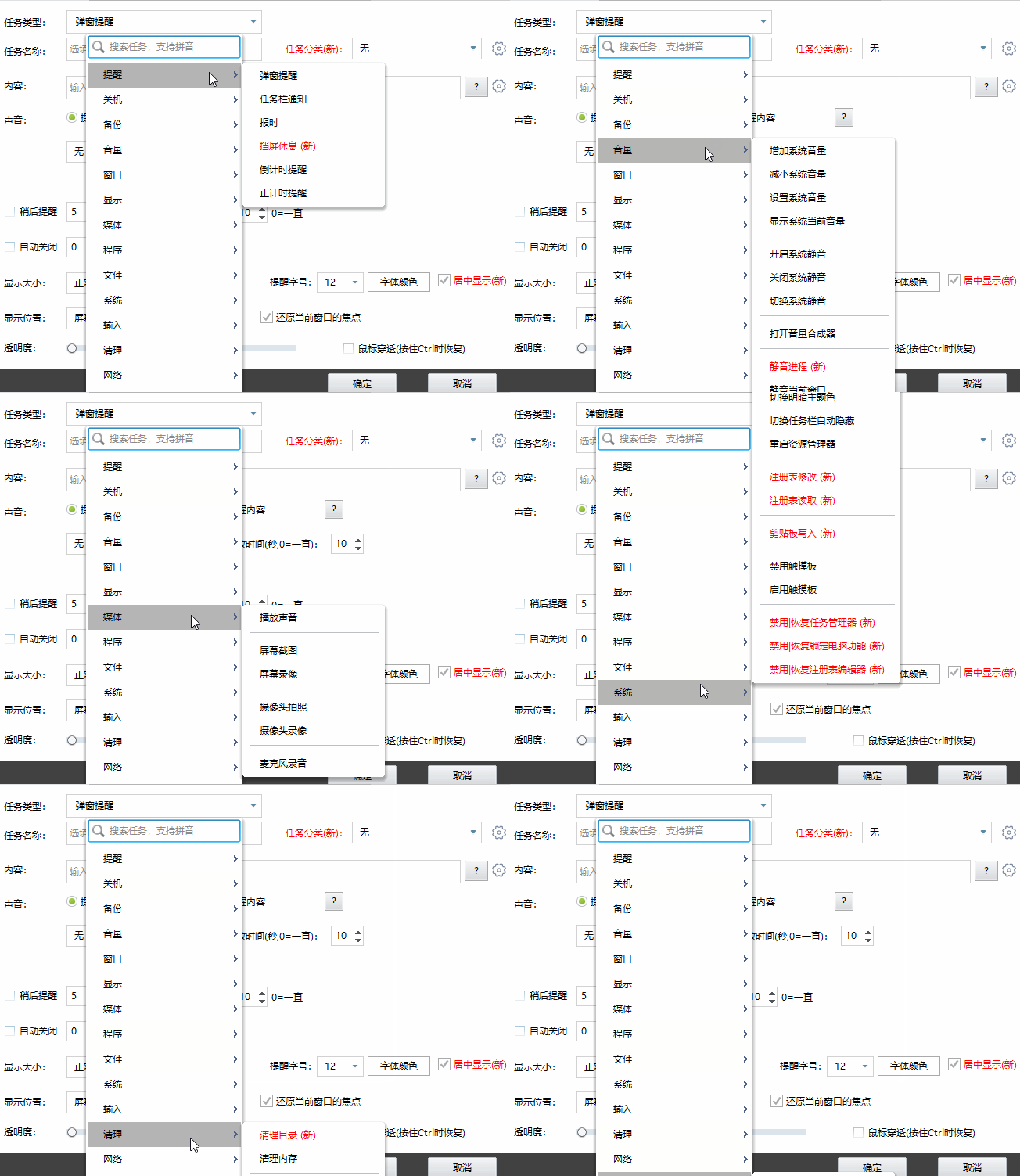
Scheduling by clock is the entry point, and the implementation goes further than the obvious: second-level precision, countdowns, repetition at fixed intervals, calendar expressions for the awkward cases, and a lunar calendar option for people whose obligations follow one. That last item is a good indicator of the intended audience, because no international product would have thought of it and a great many users need it.
The more useful idea is the condition trigger, which fires on a state rather than a time. A processor that stays above a threshold for a while. A network speed that drops. A folder whose contents changed. A particular window appearing or disappearing. A change in what a camera sees, which is a surprisingly practical way to detect that somebody walked into a room. These are the automations that do not need to be scheduled because they should happen exactly when they are needed and never otherwise.
Hotkeys complete the set, and the detail that matters is that a hotkey can be bound to a process rather than to the whole desktop. Defining a key combination that only acts while a particular application has focus is the difference between a shortcut and a source of unexplained behaviour in unrelated programs, and it is the kind of thing that only gets added by somebody who has been annoyed by its absence.
What the actions actually cover
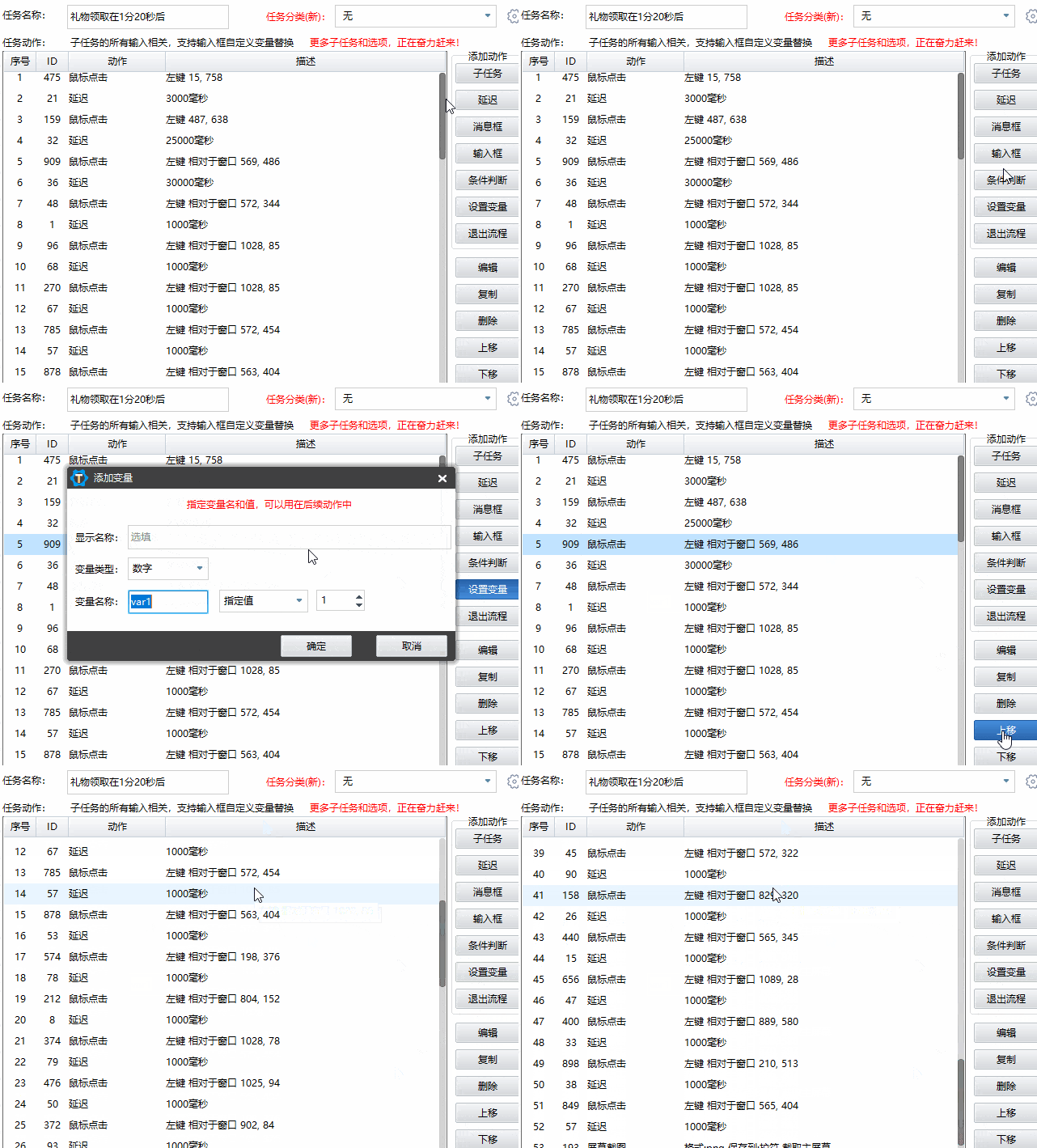
Three groups are worth separating. System management is the plainest: shut down or restart, change the volume, take a screenshot, freeze a process that is misbehaving, back up a registry branch before something risky. Efficiency actions are the ones people install the tool for: synchronising a folder with compression and encryption, searching text inside files, an hourly spoken time announcement, a reminder to look away from the screen for a while. Extension actions are where it becomes a small programming environment: run a script, record a sequence of mouse and keyboard actions and replay it, watch for a pop-up window and deal with it.
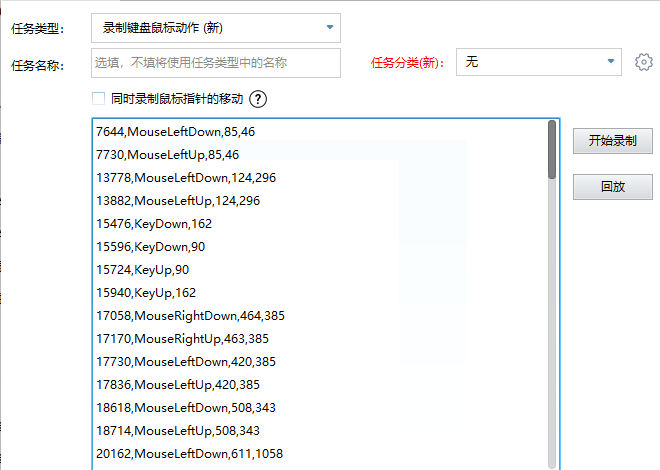
The presence of a recorder is more significant than it looks. Most people who need automation need it for a task they can perform but cannot describe, and recording the performance is the only interface that helps them. It is also the feature most likely to produce a fragile automation, because a recorded sequence breaks the moment a window moves, which is worth knowing before relying on one for anything that matters.
The unglamorous parts that decide whether it is usable
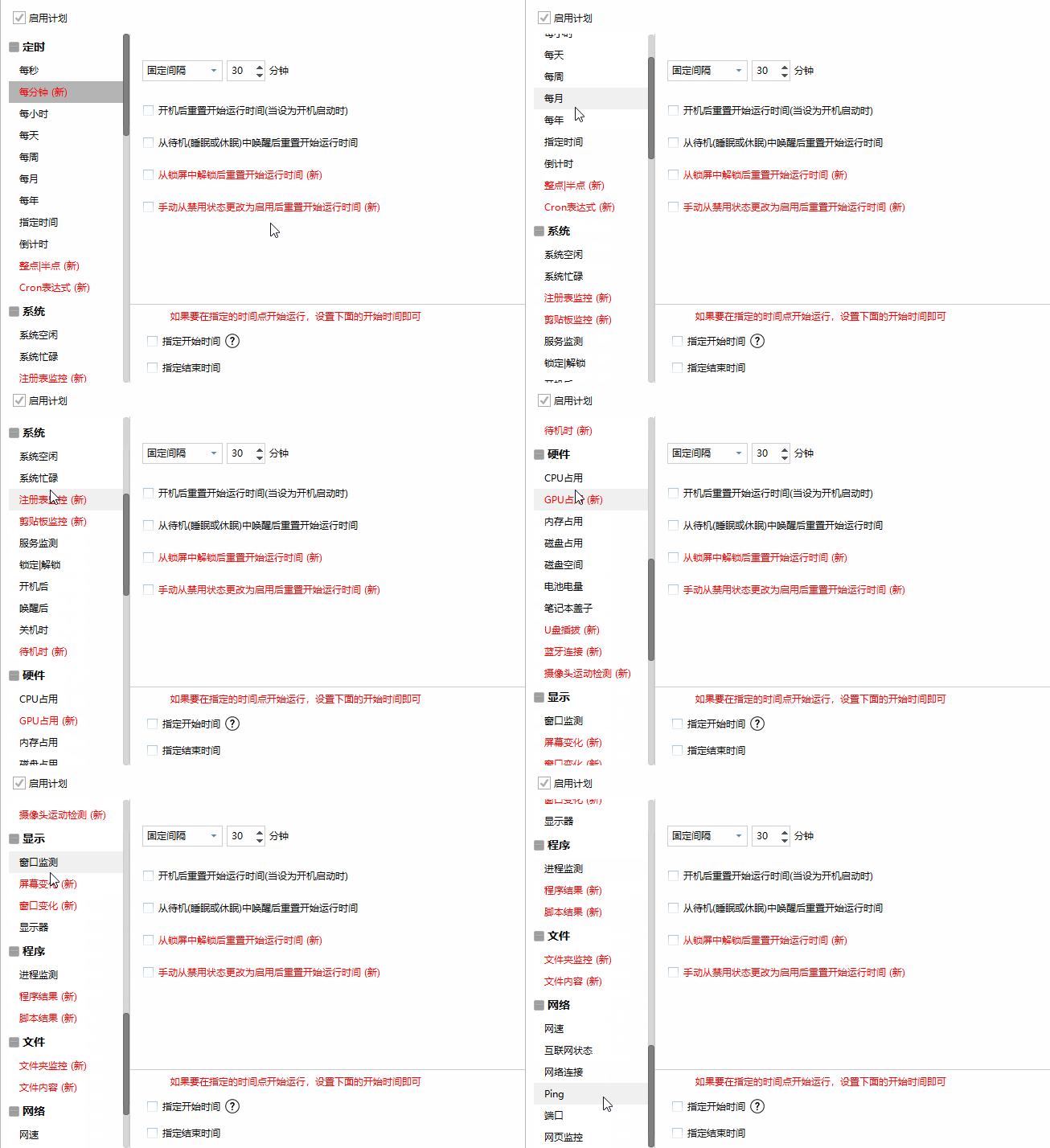
Tasks can be grouped, searched by phonetic input, and inspected through a log that records what ran and when, which is the difference between an automation and a rumour. The window scales properly on a high resolution display, the resource footprint is small enough to leave running, and the portable build means the same set of tasks can travel. An installed build adds self-updating, which is a convenience and also a decision: software that updates itself is software that can change behaviour without asking.
The warning that belongs in the description
A tool that can shut a machine down on a condition, freeze processes and run scripts is a tool that can do those things at the wrong moment, and the honest framing is that automation moves risk rather than removing it. Two specific points are worth stating. Security software sometimes treats a program that watches folders, records input and executes scripts as suspicious, because from the outside it resembles things that are; the project documents this and the practical advice is to test in a virtual machine first rather than to assume a detection is a verdict. And an automation that runs silently for months is an automation nobody has verified, so the log is not a diagnostic tool for failures, it is the only evidence that success is still happening.
Who it is for
Three kinds of use account for most installs. Personal convenience, which is the largest category and the least discussed: clearing temporary files on a schedule, changing the wallpaper, a key combination that reports how much disk space is left. Operations work, where a folder is monitored and synchronised, a process is watched and restarted, a hardware reading crosses a line and something is said about it. And office automation, where a script and a compound task replace a routine that somebody was performing every morning.
For anybody whose needs run to orchestrating several machines, scheduling across a domain, or writing automations as code that lives in a repository, this is the wrong tool and a heavier one is correct. For the single Windows machine that a person sits in front of, the choice is between learning a scheduler designed for administrators and using one designed for the person, and that is not a difficult choice.