
LinkAndroid puts one app in its own window on the desktop and hands the repeat work to scripts
Summary
LinkAndroid gives an Android phone a place to stand on the computer: a single app can be mirrored into its own window without taking the phone over, and files, apps, recording and a terminal all sit in one interface, with repeat work handed to Python scripts and AI.
Recommend- Name
- LinkAndroid
- Version
- 2.3
- Open source
- Open source
- Operating system
- WindowsmacOSLinux
- Website
- https://linkandroid.com/
- Updated
- 2026-10-10 14:37
Handing the phone over to the computer should not cost you the phone.
The gap between an Android phone and a computer is rarely closed by a single program. Sending a file means finding a cable, installing a package means opening an assistant, recording the screen means another tool, and running two debug commands means opening a terminal of its own; do all of that a dozen times a day and the toolchain becomes a cost in itself. What LinkAndroid sets out to do is plain: gather connecting, mirroring, files, apps, screenshots and recording, the command line and scripts into one desktop window, so the phone has a stable place to stand on the computer.
It is a cross platform tool built on Electron, supports Windows, macOS and Linux, and is open source under Apache-2.0. Nothing extra has to be installed on the phone; it goes through the debugging channel the system already has, and the only preparation is a single step, switching on the debugging toggle in the developer options.
The unit of mirroring shrinks from a whole screen to a single app
The common approach is to move the entire phone screen onto the computer, and the cost is obvious: the moment the picture crosses over, the phone is essentially occupied. In version 2.3.0 LinkAndroid changes the approach and shrinks the object of mirroring from the screen to the app: the chosen app gets a virtual screen of its own and opens in its own window, the physical resolution of the phone is untouched, and the main screen stays usable. Want two apps at once? Mirror each into its own window, they do not interfere, either stream can be stopped on its own, and when a mirror is closed the app behind it ends automatically.
The virtual screen size and pixel density are yours to set: follow the phone, pick one of several presets, or type a custom value, and the choice is remembered. The same release adds a way to restore the phone resolution, resetting in one click a device that another tool has altered.
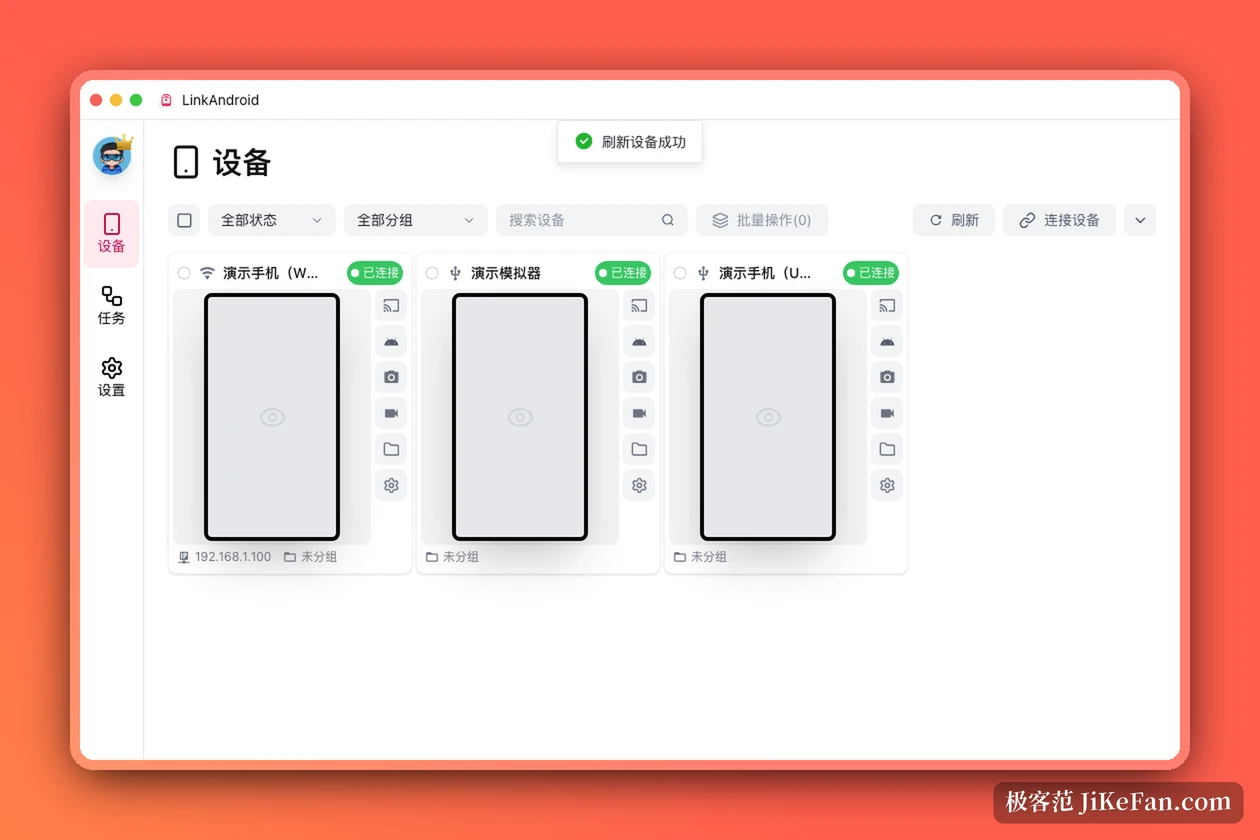
Connecting should take as few clicks as possible
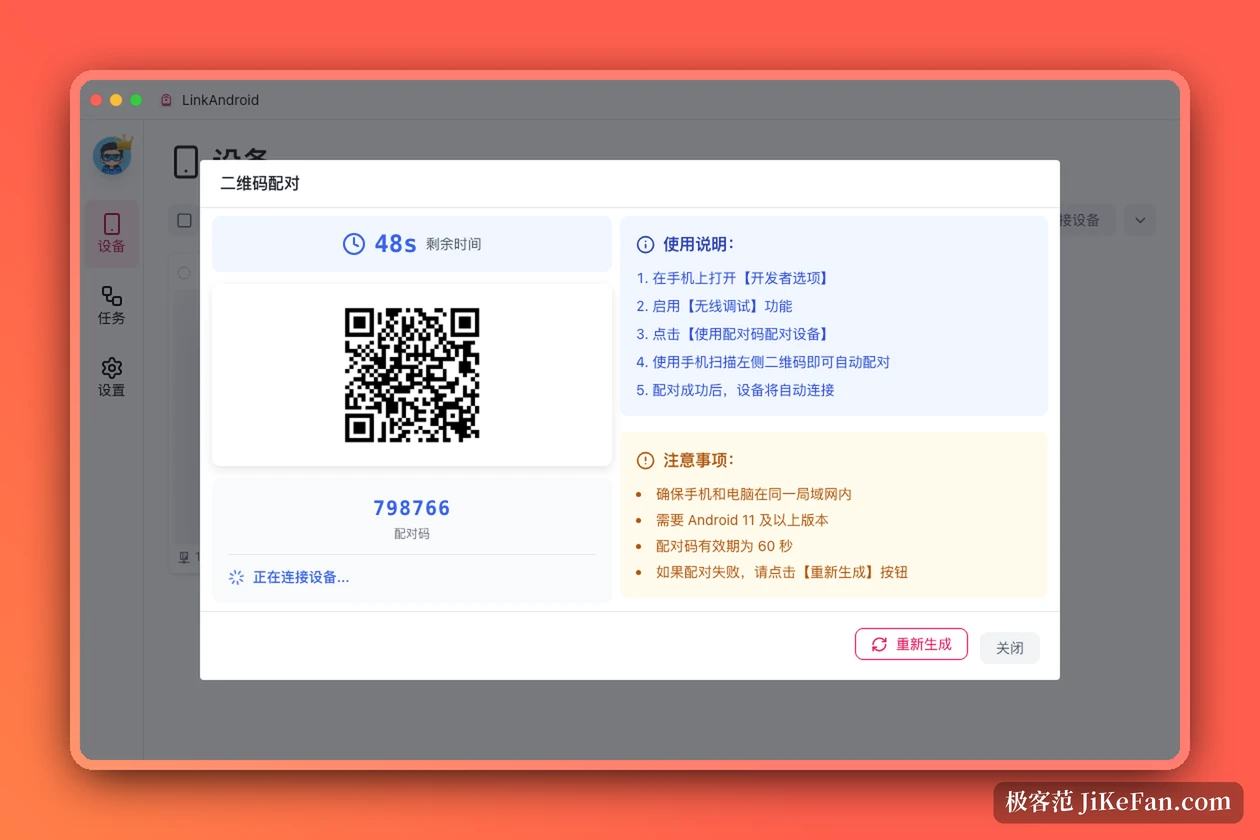
Plug in the USB cable and the device is recognised, and the wireless route is well covered too: scan a code to pair, type the six digit pairing code, enter the address and port directly, or let devices on the local network be discovered automatically. Several phones can be grouped, test units and spares kept apart, which makes filtering quicker. Follow mode suits batch work: a click, a back press, a volume change or a screenshot in the main window is forwarded to the other devices, so one action covers the lot without switching windows.
Picture quality is adjustable as needed, with bitrate, frame rate, always on top and border display all in the settings; if the phone should not stay lit, switch the screen off when mirroring starts, and the side panel has buttons for blanking and waking it, going through the control protocol so the phone is not simply locked. When a live stream needs another camera angle, the front or rear camera can be called up and its picture sent to the computer in real time, with resolution and frame rate selectable. The mirroring core is a mature open source one, so latency and picture sit close to calling it from the command line, with the difference that the long string of arguments no longer has to be remembered.
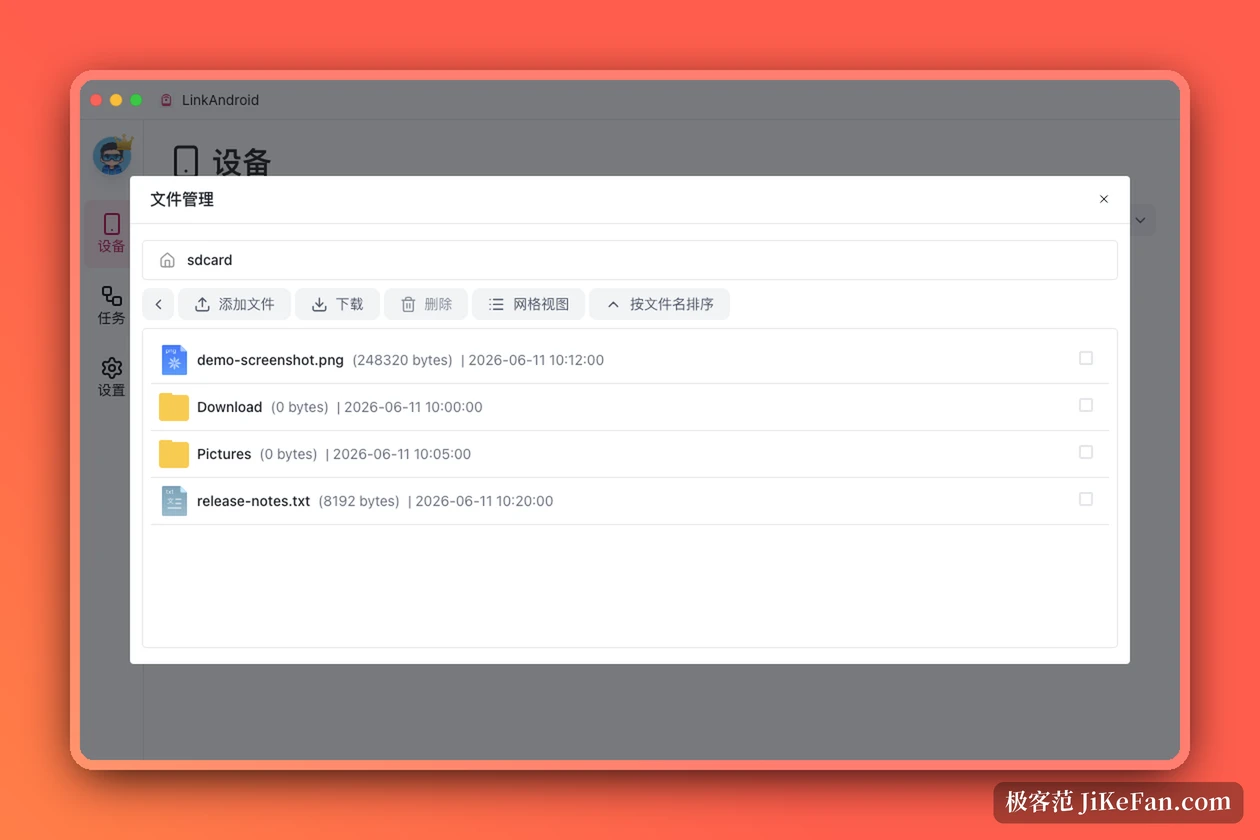
Files, apps, recording and a terminal, all in the same window
The file manager mounts the phone storage on the desktop, opening at the root of storage by default, with list and grid views, sorting by name, time or size, and upload, download, delete and rename all done by dragging. App management lists the third party apps installed and matches icons automatically, supports uninstalling in bulk, and can push an installer from the computer into the phone, or start a given app on the spot.
Screen recording writes MP4 or GIF, with length and quality up to you, and the export is compressed automatically, which is enough for a demo, a tutorial or reproducing a defect; a screenshot does not come back as a bare image but opens the built in panel with device frames and gradient backgrounds, saving the trip through another program to add a shell. The terminal is a full command line environment with the common commands in a shortcut panel beside it, inserted with one click, so history no longer has to be scrolled.
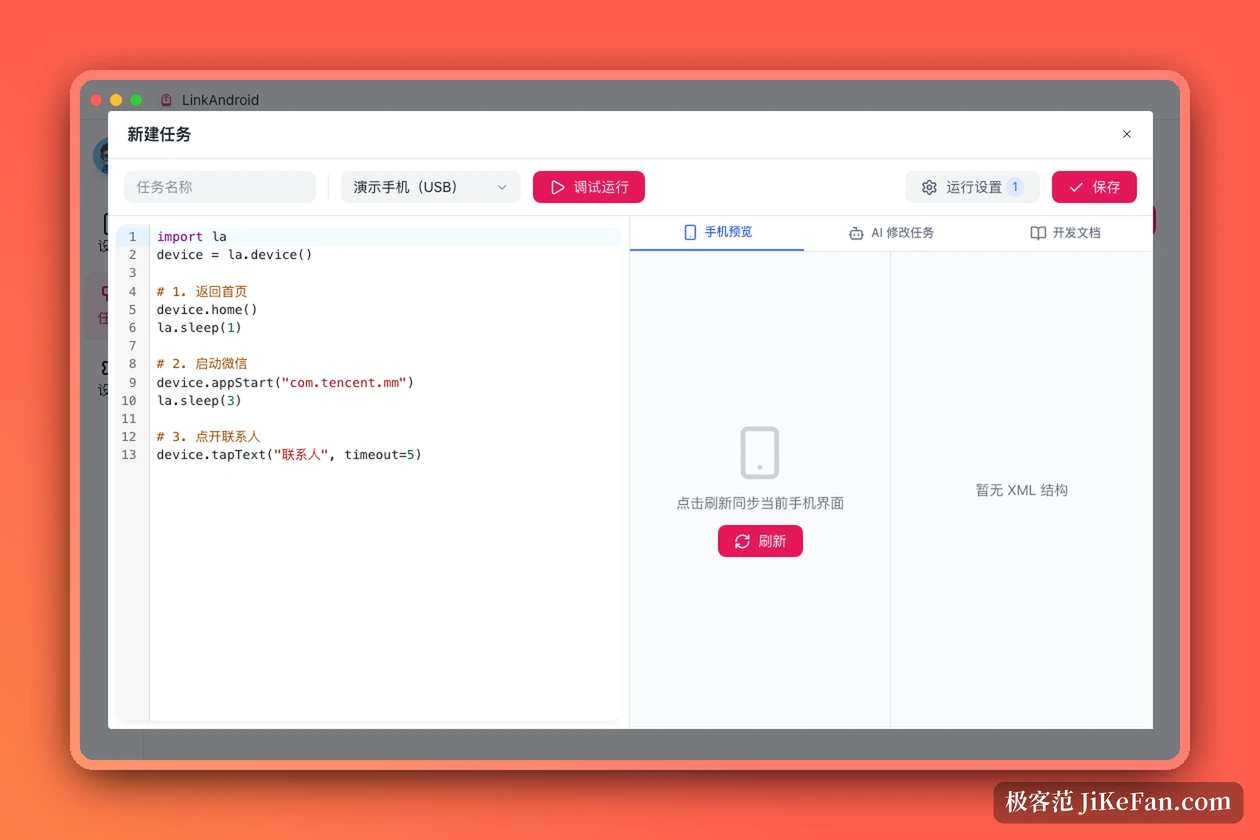
Writing the repeat work into scripts, with AI filling the part that needs no code
What really separates this from a plain mirroring tool is the task system. Scripts are written in Python on top of uiautomator2, wrapped in an interface that gathers tapping, swiping, launching apps, reading device information, taking screenshots and pressing keys, and more than a hundred calls cover the everyday moves. The editor is built on CodeMirror 6, highlights Python, JavaScript, YAML, Markdown and JSON, runs what you wrote for a debug pass, and shows the phone preview and the view hierarchy beside it.
Not being able to write code is no obstacle either. When AI generates a script it first reads the current screen and the view hierarchy, then writes code against that interface, while blocking unsafe paths such as shell commands and subprocesses so the script only goes through controlled calls. Model access covers more than forty providers, Ollama and LM Studio running locally among them. A script can run on a schedule, or across several devices ticked at once, with run history and logs kept in the task list; task ability is also exposed as a remote interface with token authentication, so a pipeline can fire one request and trigger a task on a given device.
Three things worth knowing before you use it
The first is the platform. Windows 10 and later and macOS 10.15 and later both have installers, macOS split by Intel and Apple silicon, and Linux gets AppImage and deb packages; the project is open source under Apache-2.0, so the source can be read. The second is the split between editions. The vendor puts the core features in the free open source community edition, with a Pro edition adding multi device control, device grouping and automatic discovery on the local network, on subscription, and the main features work without paying. The third is the precondition. Wired or wireless, the phone has to have the debugging toggle on and authorise this computer, and wireless also requires phone and computer on the same local network; without that step nothing else follows.
What it saves is never a single click. It is the gap between phone and computer that keeps demanding a jump back and forth: the device becomes an object on the desktop you can work with directly, and the repeat moves go to scripts.