
Virtual CloneDrive: mounting an ISO without burning a disc
Summary
A small free tool that turns a disc image into a drive letter. Double click an image in the file manager and it mounts; right click to eject or change how many virtual drives exist. It reads images and does nothing else, which is the point.
Recommend- Name
- Virtual CloneDrive
- Version
- 5.5.3
- Pricing
- Free
- Open source
- Proprietary
- Operating system
- Windows
- Updated
- 2026-10-06 18:49
One job, done once
It takes a disc image and presents it to the system as a disc sitting in a drive. After mounting, a new drive letter appears, and whatever was going to read that disc reads it the ordinary way: an installer finds its files, an audio disc plays, a video disc opens. Nothing is written to a blank, and no optical drive has to spin up. The tool has been around since the era when copying a disc meant owning a stack of them, and it has stayed free the whole time.
The reason such a small thing earns a place is worth spelling out. An installer written a decade ago does not know about archives; it knows about drive letters and expects the files to be on one. Unpacking an image into a folder breaks that assumption often enough to be annoying. Mounting satisfies it exactly, with the files appearing where the program insists on looking.
How it is used, which is barely at all
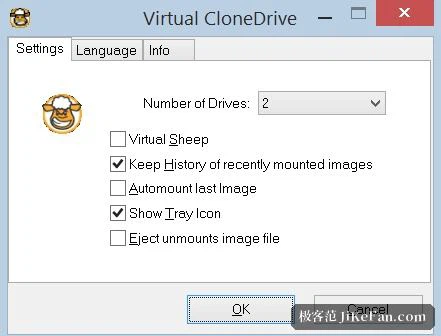
After installation there is no main window to open. Double click an image in the file manager and it mounts; the context menu carries mount, eject and a setting for how many virtual drives should exist. Common image formats are all handled, including the ones that ship as a pair of files rather than a single one. Up to fifteen drives can be active at once, which sounds excessive until you meet an installation set of four discs, or a set of reference material that someone split for no reason you can see.
Recent images are remembered, and the last one can be mounted automatically at startup. That last option exists for a specific annoyance: programs that check for their disc every time they launch and refuse to start without it. Point the automatic mount at that image once and the argument is settled permanently.
Where the edges are
It is read only by design. An image can be read; a folder cannot be turned into one, and an image cannot be written back to physical media. That is not laziness, it is the scope of a virtual drive: presenting existing content to a program that expects a disc.
A virtual drive also does not exist until the operating system is already running, which is why it cannot be used to boot a machine or to install a system from an image. That distinction catches people out, and it is worth knowing before planning an afternoon around it. The settings themselves are restrained, mostly buffering behaviour for reads and the automatic mounting options, and that restraint is the feature. A tool you forget you installed and find in the context menu when needed has done its job better than one with a dashboard.
Version and compatibility
The current release carries the number 5.5.3, runs across the range from Windows XP to Windows 11, and needs administrator rights to install because it puts a driver in place. The notable change in this release is an update to the low level driver together with a fix for a privilege escalation flaw, which is the sort of note that should make anyone who has not updated in a while do it once.
The installer is barely over a megabyte and carries no bundled offers, which in this category is worth mentioning out loud.
A virtual drive is the kind of tool you cannot remember when you are not using it and cannot do without when you are. What mounting an image saves is not only a disc, but the minutes spent finding one, swapping it, and waiting for a physical drive to spin up.