
SmartGit: a Git client that draws the commit graph for you
Summary
SmartGit is a cross platform graphical client for version control: commit graph, branch handling and conflict resolution on one screen, integration with the major hosting platforms, two further version control systems supported, free for non commercial use.
Recommend- Name
- SmartGit
- Version
- 26.1.052
- Pricing
- Free
- Open source
- Proprietary
- Operating system
- WindowsmacOSLinux
- Updated
- 2026-10-06 22:54
The commit graph, drawn where you can see it
A terminal is a perfectly good place to drive a version control system, and on a small project with a single branch it is often the shortest route. The trouble starts with growth: dozens of branches, merges arriving from three directions at once, an urgent fix that has to be lifted onto a release line. At that point the commit graph stops fitting in your head and becomes something you guess at, and a guess usually costs half a working day. SmartGit answers with a picture. Repository state on the left, the graph of commits down the middle, the details of whatever is selected on the right, so the shape of the branch structure can be read rather than remembered.
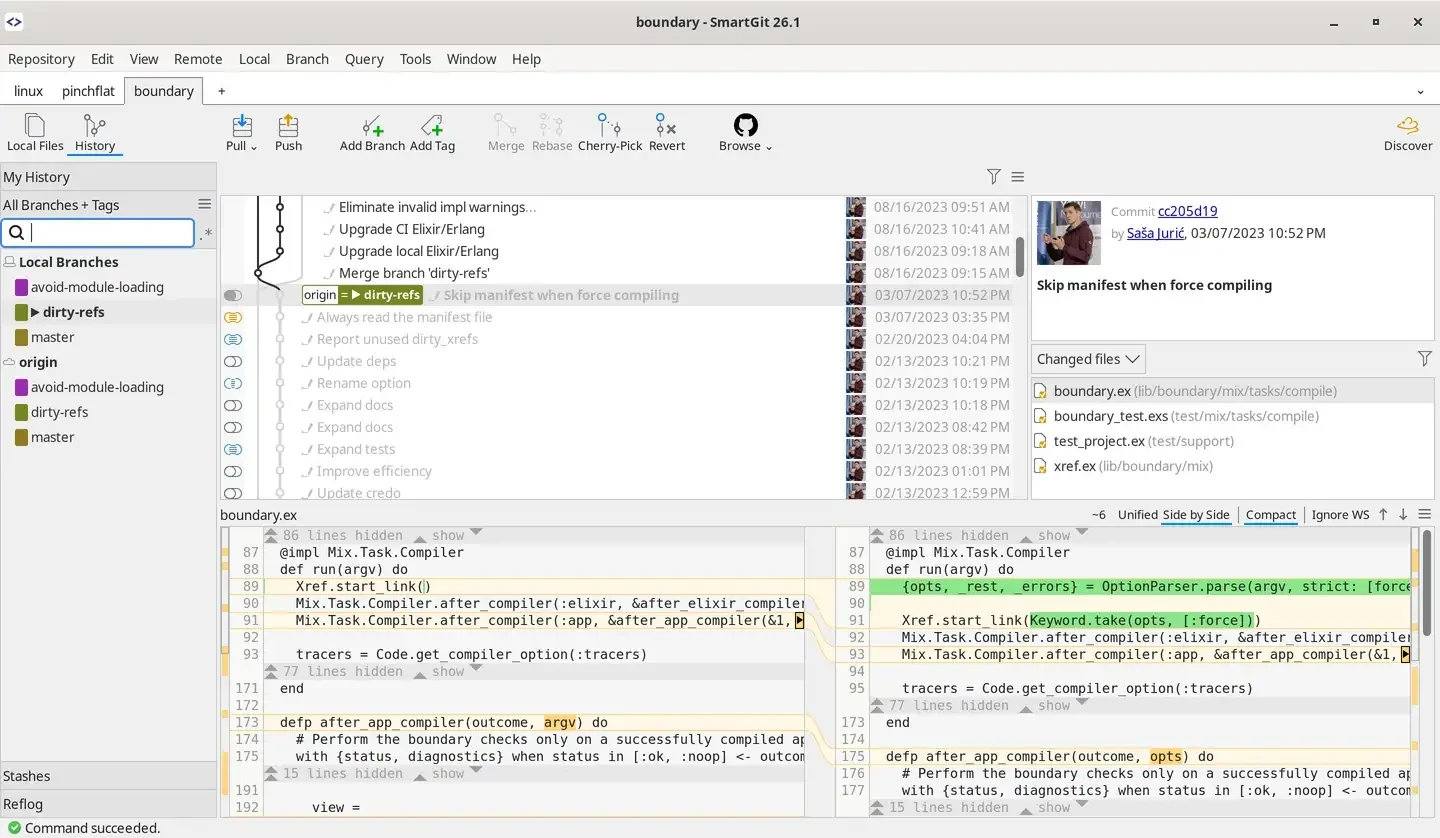
Day to day work happens mostly by dragging. Pick up a commit, drop it on a target branch, and the program decides whether that means a merge, a rebase or a cherry pick before carrying it out. When two lines of work touch the same rows of code, a three way view opens and the conflict gets settled row by row, with every side of the change on screen at once. No arguments to memorise, no stashing everything before switching branches.
Nothing in that flow requires knowing the commands underneath, which is the point of a graphical client, but nothing hides them either. The vocabulary of the system it drives stays intact, so a habit built here travels back to the shell instead of trapping you in a private dialect.
Two decades of polish, visible in small things
Coverage of team workflows is more complete than most windowed clients manage. Integrations with the major hosting services let you open and handle merge requests inside the window, follow pipeline status without a second browser tab, and tie a commit message to the issue it belongs to. Pull behaviour for a remote that answers on several addresses at once has been thought through with unusual care.
The changelog for 26.1.052 deserves a slow read. It catches up with newer hashing and reference features from the version control system underneath, redraws the toolbar, sharpens the dark theme, and adds an overlapping commit hint to the graph so a collision surfaces before you walk into it. There is also a writing helper whose prompt you can edit, useful for drafting a commit description from whatever is staged. The application still speaks two further version control systems as well, so a repository kept in one of those opens without a detour through another program.
The reputation SmartGit carries is about steadiness. Two decades spent on one problem, version control, and on turning every awkward operation into a path you can see and click. A tool that holds still is a tool people dare to experiment with.
Licensing deserves a plain sentence: non commercial use is free, companies need a paid licence, and personal study or open source work can use it at no cost. Installers exist for Windows, macOS and Linux, and releases land on a dependable rhythm. The interface is information dense, denser than a beginner needs on the first day, so give the layout ten quiet minutes before the first real task; past that threshold the density is the speed.
Who is it for, then. Anyone who reads other people history more often than writing their own, anyone who has to explain a branch structure to a colleague, and anyone who would rather watch a rebase fail on screen than discover it later. On a solo project with one straight line of history the terminal stays shorter. Everything past that point feels calmer with the graph in front of you.
Three panes at once also means every selection refreshes the other two: you look at a branch and immediately see which files each commit on it touched. Once that habit settles in, going back to plain text output feels clumsy. The first days ask for a little patience. There are many menu entries and some actions hide in a context menu; drag the frequent ones onto the toolbar, fold away the panes you never open, and the window slims down. That tuning happens once and pays back daily.