
ShellExView: switch off the shell extensions that slow your right-click menu
Summary
A free NirSoft utility that lists every context menu handler, thumbnail provider and icon overlay registered on a Windows machine, paints third-party entries pink and switches each one off with a keystroke. It weighs a little over a hundred kilobytes and needs no installation.
Recommend- Name
- ShellExView
- Version
- 2.01
- Pricing
- Free
- Open source
- Proprietary
- Operating system
- Windows
- Updated
- 2026-10-06 20:42
Why a right-click menu slows to a crawl
Every program that lands on a Windows machine gets the chance to attach a piece of itself to the shell: an extra line in the context menu, a thumbnail provider, a layer of icon overlays, a tab on the property sheet of a file. None of them hurts on its own. Stack up a dozen and the context menu needs several seconds before it appears, while the file browser freezes for a reason nobody can name. ShellExView is a small utility from NirSoft built for exactly that situation. It lists every shell extension the system has registered, one row each, and turns switching them off into a keystroke, so you never have to open the registry editor and hunt by hand.
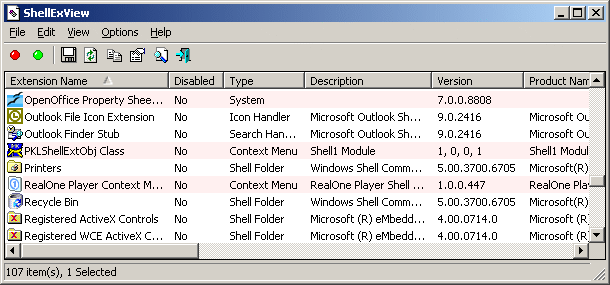
The ground it actually covers
A shell extension is an in-process COM component that the file browser loads while it draws a window. In day-to-day terms that means context menu entries, thumbnail extractors, preview handlers, icon overlays, property sheet tabs and drag-and-drop handlers, and the utility recognises more than 22 kinds of them. Once it runs, every extension occupies one row: name, type, file path, version, vendor, product. Extensions injected by third-party software are painted pink, which separates them from the ones that ship with the operating system without any sorting at all.
Triage in three moves
The workflow the tool is built around is short. Filter the list down to the context menu types first, then read the vendor column to work out which installed program each row belongs to. Mark the suspicious rows and press the disable key, which handles a multiple selection in one go. If you guessed wrong, a second key restores everything you switched off. From the menu you then restart the file browser process, and the change takes effect at once, with no reboot and no logging out. Nothing in that sequence touches the registry and nothing deletes a file, which is what keeps the cost of a wrong guess close to zero.
Beyond triage: reading the list as an audit
Double-clicking a row opens the full record of the component behind it, including the state of its digital signature. That single field answers the question support staff usually ask first, namely whether the thing was signed by a vendor you can name. The grid can also be exported as a CSV, HTML or XML report, which is how you keep a snapshot to compare against later. For administrators the more interesting half is the command-line interface plus the ability to point the tool at another machine on the local network. Sitting at your own desk you can inventory the shell extensions installed across the rest of the fleet, then drive the enable and disable switches from a script.
The symptoms it is known for
Slow context menus are only the loudest complaint. Video files that refuse to show a thumbnail, or show the wrong frame, usually trace back to one codec-based thumbnail handler misbehaving. Desktop icon badges that stop refreshing generally mean too many overlay extensions are competing for the handful of slots the system offers. A file browser that starts crashing right after an installation is the clearest case of all: switch off the newly added third-party extensions one at a time and the offender usually surfaces within two or three rounds. Each of those investigations used to mean walking the registry by hand; now it is a handful of clicks.
Small enough to live on a USB stick
The package unpacks and runs. It writes nothing to the registry, leaves no residue behind, and the whole thing weighs a little over a hundred kilobytes. A 32-bit and a 64-bit build are both supplied, and between them they cover everything from old installations to Windows 10 and Windows 11. For personal use it costs nothing and carries no advertising or bundled extras, which is why it tends to sit quietly on a rescue stick until the day something breaks and it earns its place.
Reversible, so guessing is cheap
One caveat deserves to be stated plainly. Disabling an extension only stops that component from loading; it deletes nothing, so every action can be undone and none of them is dangerous. If you happen to cut something the system genuinely needs and a piece of the interface disappears, the restore key brings it back unchanged. Switch off one or two entries at a time and observe the result rather than turning everything off in a single sweep. That habit is what lets you name the culprit precisely, and it keeps the way back obvious. On a freshly reinstalled system it is also worth exporting a clean list first, so that any future problem has a baseline to be measured against.
Who ends up using it
Ordinary users reach for it when the context menu drags and the file browser keeps dying, the two problems that rarely have an obvious fix. More advanced users and administrators treat it as a small auditing and remote maintenance aid, since the same grid that answers a support ticket also produces an inventory. The utility is free and still maintained, and the details are on the vendor's own site.