
Mod Organizer 2: keeping mods out of the game folder
Summary
An open source mod manager that keeps every mod in its own folder and mounts them only when the game starts, so the game directory stays untouched. Conflicts are shown rather than hidden, load order is dragged into place, and separate profiles can hold entirely different setups.
Recommend- Name
- Mod Organizer 2
- Version
- 5.2
- Pricing
- Free
- Open source
- Open source
- Operating system
- Windows
- Website
- https://www.modorganizer.org/
- Updated
- 2026-10-06 22:27
A manager that never touches the game folder
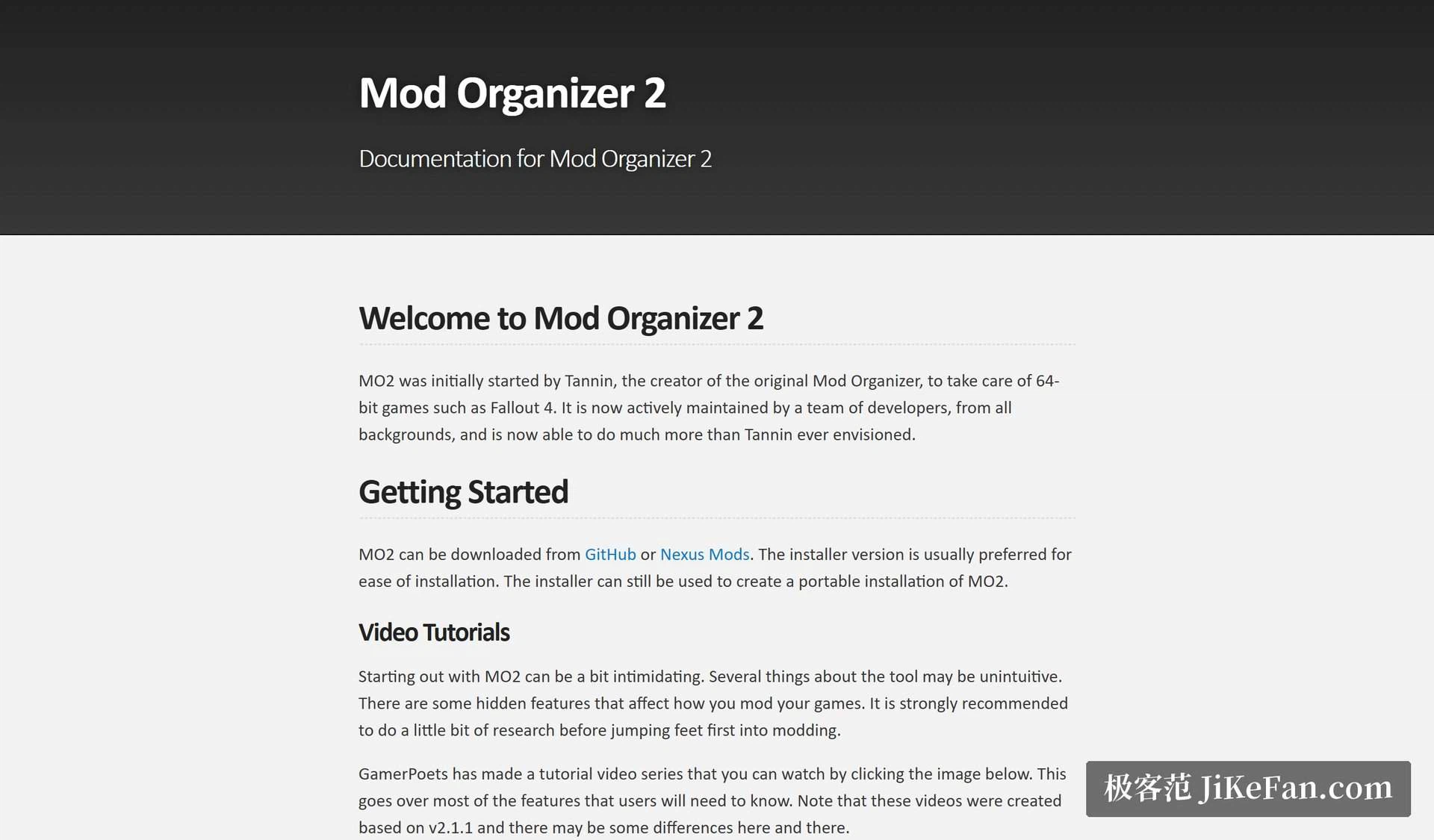
The old way to install a mod is to copy its files into the game directory and overwrite whatever is in the way. It works, and it is a one way street: once two mods have overwritten each other there is no record of which file came from where, removing one leaves pieces of it behind, and reinstalling the game means starting the entire collection again. This tool does the opposite. Every mod is installed into its own folder, and it is mounted only when the game starts, through a virtual file system in user space. The game believes the files are in its data directory; on disk, not a byte has been written there.
The consequences are more interesting than the mechanism. Turning a mod off is a checkbox rather than an uninstall, and the game directory is byte for byte what it was before the collection started. When something breaks and the usual advice is to start over, starting over costs a few clicks instead of an evening.
Conflicts are shown instead of felt
Install enough mods and they will overlap, and the old way of discovering that is a game that behaves strangely. Here the overlap is on the screen. One list on the left decides which mod wins a contested file, a second list on the right decides the order in which plugins load, and when two mods claim the same file the interface says so directly. Which one wins is a drag, not an investigation.
Two conveniences sit on top of that. Automatic sorting support can arrange the plugin order for you, which is the step most likely to be done wrong by hand. And the common installer format used by mod authors runs directly, so an installation is a matter of answering the options rather than unpacking an archive and guessing where things go.
Profiles, and support for more than one game
The strongest feature is the profile. A single installation can hold several, each with a different set of mods enabled and different configuration settings, so a clean run of the original game, a scenery focused setup and a punishing hard mode can all exist at once and be swapped in seconds. Without this, anyone with more than one way of playing ends up reinstalling mods regularly, and eventually stops switching at all.
Support for each game comes through a plugin system, which is what lets one manager serve several titles and several generations of them. Different storefront versions of the same game are handled separately, which matters because the file layouts are not identical.
Requirements, and what to know first
The current stable release needs 64 bit Windows 10 from a specific feature update onward, or Windows 11; machines on older systems have to stay on the previous line. The installer can be pointed at an existing directory when upgrading, and a portable mode exists for people who keep things on an external drive.
One limitation is worth knowing before an afternoon is lost to it: games bought from the built in store of the operating system are not supported, because their packaging puts files somewhere the manager cannot reach in the usual way.
For two or three small mods, any manager will do. Past fifty, the three things that matter are isolation, visible conflicts and swappable profiles, and this is still the default answer for people who mod heavily. It is free and open source; the price is an hour spent understanding what the two lists on the left and right actually mean.