
Easy Service Optimizer Review: Tame Windows Background Services
Summary
Easy Service Optimizer is a free portable utility from Sordum that turns Windows service tuning into a preset menu: pick a level, apply it in one click, and roll everything back if a feature misbehaves. No installer, no background agent.
Recommend- Name
- Easy Service Optimizer
- Version
- 1.2
- Pricing
- Free
- Open source
- Proprietary
- Operating system
- Windows
- Updated
- 2026-10-07 20:22
The arithmetic of background services
A stock Windows installation keeps dozens of services alive in the background. Most of them matter only in narrow situations, a print spooler on a machine with no printer or a tablet input service on a desktop tower, yet they hold memory and startup time every single day. Digging through the services console to switch them off one at a time is slow work, and a single wrong click can break something you will not notice for a week. Easy Service Optimizer turns that chore into a template. Open the program and you get a plain list of services with several preset levels attached, the conservative level touching only entries that are safe to disable on almost any machine, the advanced levels tightening further. One button applies the whole set, and on older hardware the difference in memory use and boot time shows up in the first restart.
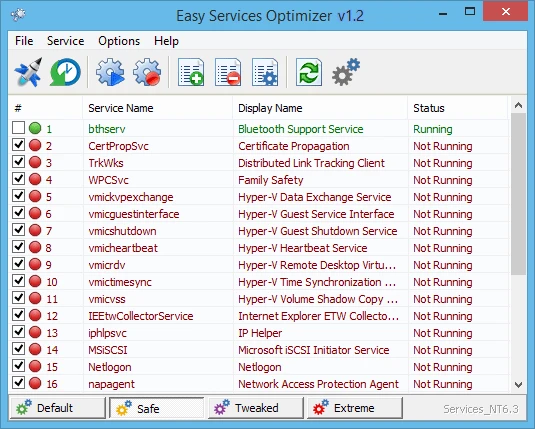
People dare to click because they can undo
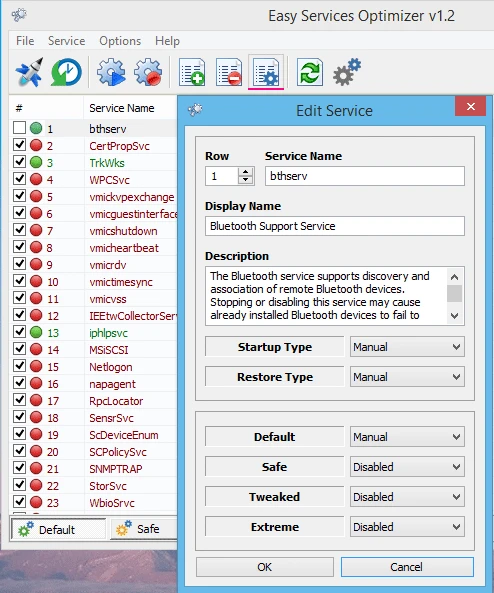
What makes those preset buttons safe to press is the rollback path. Before anything changes, the current state of every service is written out into a backup file. If a feature misbehaves after a round of tuning, a scanner stops being detected or a scheduled backup never fires, one restore action puts everything back the way it was. Service names are cryptic by nature, so each row carries a short note about what the entry does and what stops working without it, which matters more than any speed claim in the marketing copy.
The program itself is a single executable of a few hundred kilobytes. There is no installer, no tray agent, no scheduled task; it sits in a toolkit folder and opens when you need it. That shape suits the audience perfectly, because the people who care about background load are exactly the people who do not want another background process. The project has not seen a major update in a while, but the mechanics of service management have not changed either, and it still behaves on current Windows builds.
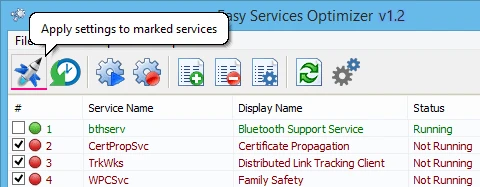
Where a preset approach earns its keep is in the middle of the curve. A machine that is only mildly overloaded does not need a stripped-down system; it needs ten or fifteen entries turned off and the rest left alone. Doing that by hand means reading a description for each candidate and guessing at the consequences, which is precisely the part most guides skip. A curated list removes the guesswork and, more importantly, removes the temptation to over-trim. Over-tuning is the usual failure mode here: switch off too much and the machine boots faster while quietly losing features you paid for.
It also helps that the list is readable. Instead of a wall of technical identifiers, the program groups entries by function and shows the current state next to each one, so it doubles as documentation for what the system is actually running. Even if you never apply a preset, opening it once answers a question that the default tools make surprisingly hard to answer. On modest hardware the effect is easy to feel; on a machine with plenty of memory the difference may stay inside the numbers, and that is worth measuring before deciding.
The value of Easy Service Optimizer is that it puts a safety catch on a specialist operation. Tuning a system should not require memorising a service reference manual; it should require the ability to undo. Being able to regret a change is exactly what makes the change possible.
A sensible way to use it: start at the safe level, live with it for a few days, and only then consider the tighter presets. Printing and update related entries are worth restoring individually if you rely on them, and anything tied to a fingerprint reader or a vendor companion app deserves a second look before you cut it. Create a system restore point before the first run, keep the backup file somewhere you will find it again, and the worst case stops being a reinstall. The end point of every tuning session is the same, having a way back.