
Autoruns: every startup entry Windows keeps out of sight
Summary
Task Manager shows one corner of what launches at boot. Autoruns from Microsoft's system tools lays out scheduled tasks, services, drivers, shell extensions and logon hooks in one place, with optional online hash lookups and offline scanning of another machine's disk.
Recommend- Name
- Autoruns
- Version
- 14.3
- Pricing
- Free
- Open source
- Proprietary
- Operating system
- Windows
- Updated
- 2026-10-20 22:00
Every program that starts with the machine has to register itself somewhere. Autoruns simply reads the whole list of those places, including the ones Task Manager was never designed to show.
The startup tab is a small window
On any Windows install that has been running for a year, the Startup tab looks reassuringly short. A dozen rows, half of them already disabled, a couple flagged as high impact. It is easy to conclude that this is the whole picture and that the rest of the slowdown must come from something else. In practice the tab reads two locations, the run keys in the registry and the per-user startup folder, which is exactly where a well-behaved installer puts its autorun entry. Everything else that launches itself during boot lives outside that view.
Scheduled tasks fire without any user visiting a folder. System services start long before a desktop exists. Drivers load underneath the operating system itself. Shell extensions attach to the file browser process, browser helper modules attach to the browser, print monitors attach to the spooler, and logon notification hooks run code at the moment a session opens. There are also registry keys whose only purpose is to name a library that gets injected into other processes. Each of those is a legitimate mechanism with legitimate uses, and each of them is a place where something can park itself permanently.
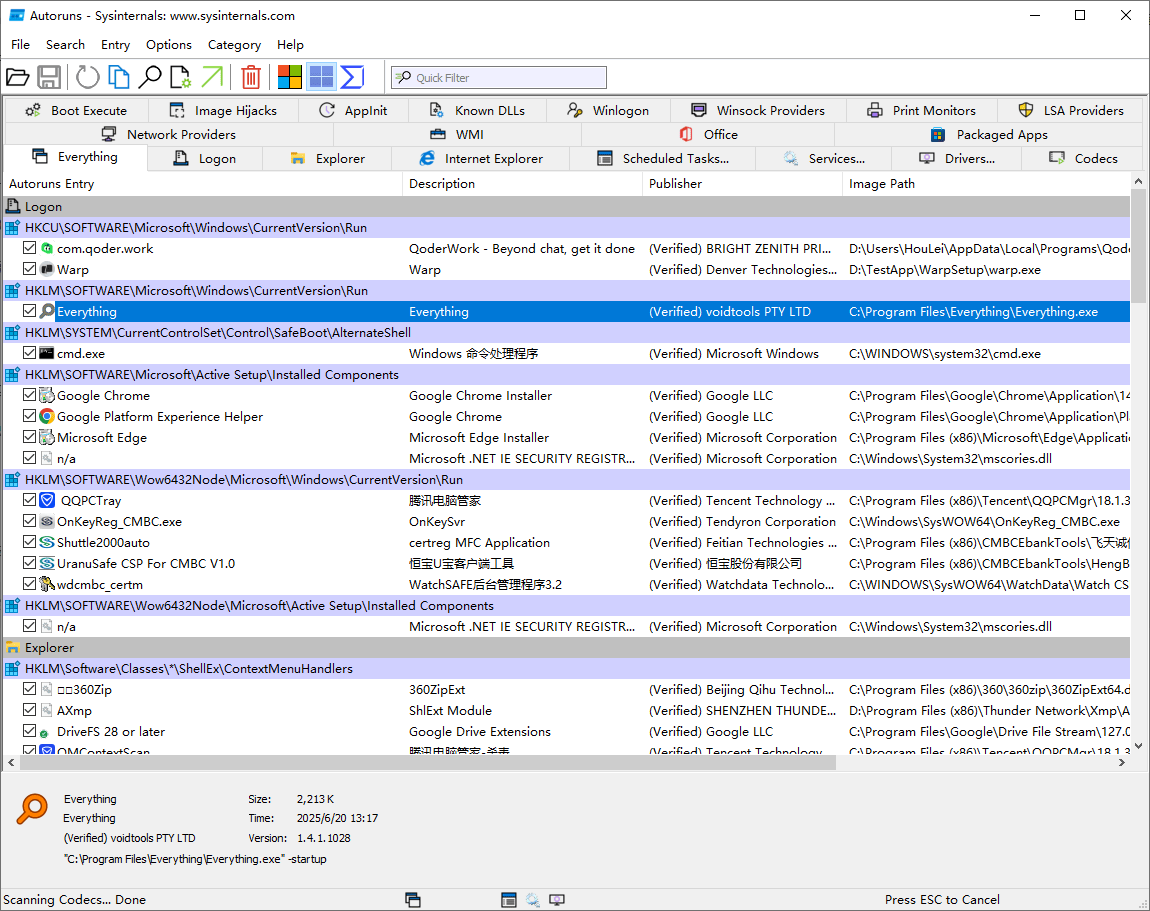
The category tabs are the actual documentation
The first run is overwhelming in a specific way. The list is not merely long, it is dominated by components that belong to Windows itself, so the screen fills with names that look alarming and turn out to be normal. Working through it is a lesson in how the operating system fits together. Autoruns separates entries by the mechanism that loads them: logon, file browser extensions, browser add-ons, scheduled tasks, services, drivers, codecs, boot-time executables, and a dozen further categories, each on its own tab. The tabs are not decoration, they are a map of the startup surface, and reading them is more instructive than any diagram of the boot sequence.
For each row the context menu reveals the file behind the entry, jumps to the exact registry location that produced it, and allows removal. A separate option hides every entry carrying a Microsoft signature. That single checkbox is the most useful control in the program. With it enabled the list collapses to a fraction of its length, and what remains is usually third-party code plus a handful of driver components that genuinely need to be there.
Where unwanted software prefers to sit
Ordinary unwanted software often does not bother with the run keys at all, because that is the first place anyone looks. It prefers the quieter corners: library injection lists, logon notification handlers, network provider stacks, and similar low-level entry points that most cleanup routines never enumerate. Covering exactly those corners is the reason the tool exists. Each row can also be checked against an online virus-scanning service by hash, which answers the practical question quickly: is this file known to be hostile, or merely unfamiliar to me.
The feature that gets overlooked most often is offline analysis. The program can be pointed at the disk of a machine that will not boot, either a mounted volume or a captured image, and it will enumerate the startup entries of that installation as if it were running locally. For anyone who has had to rescue a system that blue-screens before the login screen appears, this converts an hour of guesswork into a readable inventory. A companion command-line build exists for scripted checks and remote investigation.
Who should actually install it
The audience is narrow by design. System administrators, incident responders, and people who enjoy knowing how their machine is assembled will get years of use out of it. Someone whose only goal is to stop a laptop from taking ninety seconds to reach the desktop can open the list, hide the signed entries, disable two obvious offenders, and never think about it again. In both cases the value is the same: the machine stops being a black box. It is free, it is a single executable, and it runs only on Windows, which for a tool that exists to inspect Windows internals is not really a limitation.
The real takeaway is not the cleanup, it is the map. Once you have seen every place where code can attach itself to a boot sequence, the operating system stops being mysterious and starts being inspectable.