
Ashampoo Burning Studio FREE Review: Three Steps to a Disc
Summary
Optical drives have not retired yet, and the built in burning in Windows is barely enough. This free tool turns the job into a wizard: pick a type, drop files, start. Images and disc copies included.
Recommend- Name
- Ashampoo Burning Studio FREE
- Version
- 20260923
- Pricing
- Free
- Open source
- Proprietary
- Operating system
- Windows
- Updated
- 2026-10-07 21:34
The drive is still in the machine
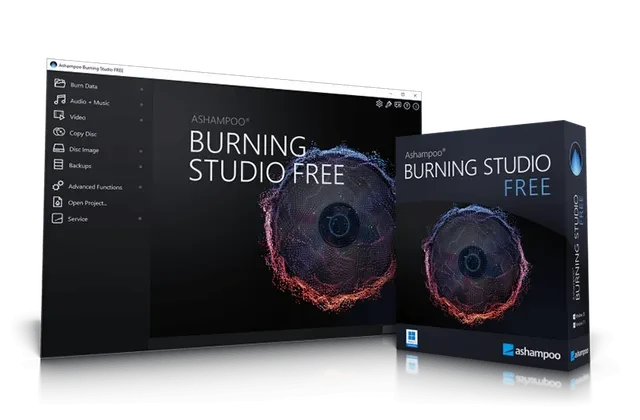
Burning discs sounds like a task from another decade, and then three things happen in one week: an archive needs a copy that will survive a dead hard drive, a car with an older head unit wants music it can read, and a relative asks for the family video in a form that plays on the television in the living room. The burning feature built into Windows is barely adequate for any of them, and that is the gap this tool fills. The workflow is short enough to describe in one line: choose what kind of disc you are making, drag the files across, press start. Data discs, audio discs and video discs each get their own template, and the write parameters for the drive are selected automatically, so a first attempt does not end with a ruined blank.
Free with a decent amount behind it
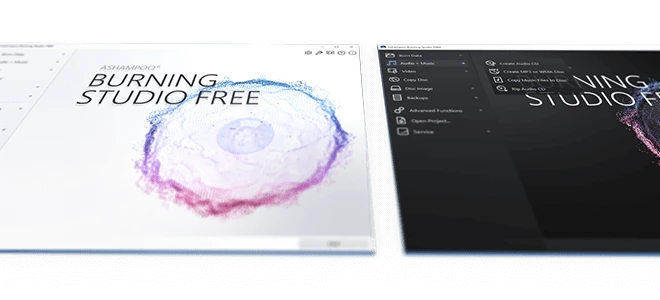
This is the free line from a long established German publisher, and the arrangement is straightforward: one email registration and the program stays free, without the common habit of disabling the useful half of the feature list. Disc copying, the creation of image files from a disc, and bootable media are all inside the free scope, which covers the cases people actually run into. The interface continues the publisher tradition of large buttons and a short path from start to result, plain enough that installing it on an older relative machine is not a support burden.
Updates keep pace with current systems, and the feature set has not been hollowed out to push an upgrade. For someone who burns a disc four times a year, this is where the search ends; there is no reason to look further up the price list for that usage pattern. The honest limit is that it is a Windows program, so a household running other systems needs a different answer for the same job.
One thing worth knowing about the medium itself: a burned disc is not a permanent archive. Dye based recordable discs degrade, and the safe assumption is a handful of years for cheap blanks and longer for archive grade ones. Store them upright, out of sunlight and away from heat, and refresh the important ones onto new media every few years rather than trusting a single copy from a decade ago. The tool cannot control any of that, but it can produce a verified disc, and a verified disc stored properly is a reasonable second copy of anything that only exists on one drive.
The attitude here is right: even a small need deserves a proper tool. Burning is not something you do often, but when you do, it should simply work.
Habits that save a blank disc
Burn important data at a slower speed than the drive claims to support. The time saved at maximum speed is a couple of minutes; the risk of a coaster is a disc and a rebuild of the archive. Verification after writing is worth leaving switched on for anything that matters, because an unreadable sector discovered a year later is worse than one discovered immediately.
Keep the image file alongside the disc when archiving. A stored image can be re-burned without finding the original folder again, and it also makes the contents inspectable on a machine with no drive. For music discs, match the audio format to what the player supports rather than the highest quality available, since an old car stereo that refuses a disc is a common and entirely avoidable disappointment. None of this is complicated, and all of it turns a rarely used tool into one that does not waste the blanks in the drawer.