
PicView 5.2.2 opens images without the index wait
Summary
PicView 5.2.2 remembers history per tab, opens comic archives in folder order and converts images right away; GPL source plus a portable build.
Recommend- Name
- PicView
- Version
- 5.2.2
- Pricing
- Free
- Open source
- Open source
- Operating system
- WindowsmacOS
- Website
- https://picview.org
- Updated
- 2026-11-19 16:42
PicView is an open-source image viewing tool for Windows 10/11 and macOS: it shows a picture the moment you double-click it, without waiting for a thumbnail index of the whole folder to be built first. The current build is 5.2.2, released on 10 November, and the work went into tab history, archive ordering and a few fields of the image-info window that nobody had touched in years.
Decode one file, skip the index
Most viewers sweep a folder for thumbnails before they hand you the first picture. PicView reverses that order: it decodes the file you opened, then a built-in preloader pulls the neighbours into memory, so the next page appears almost at once.
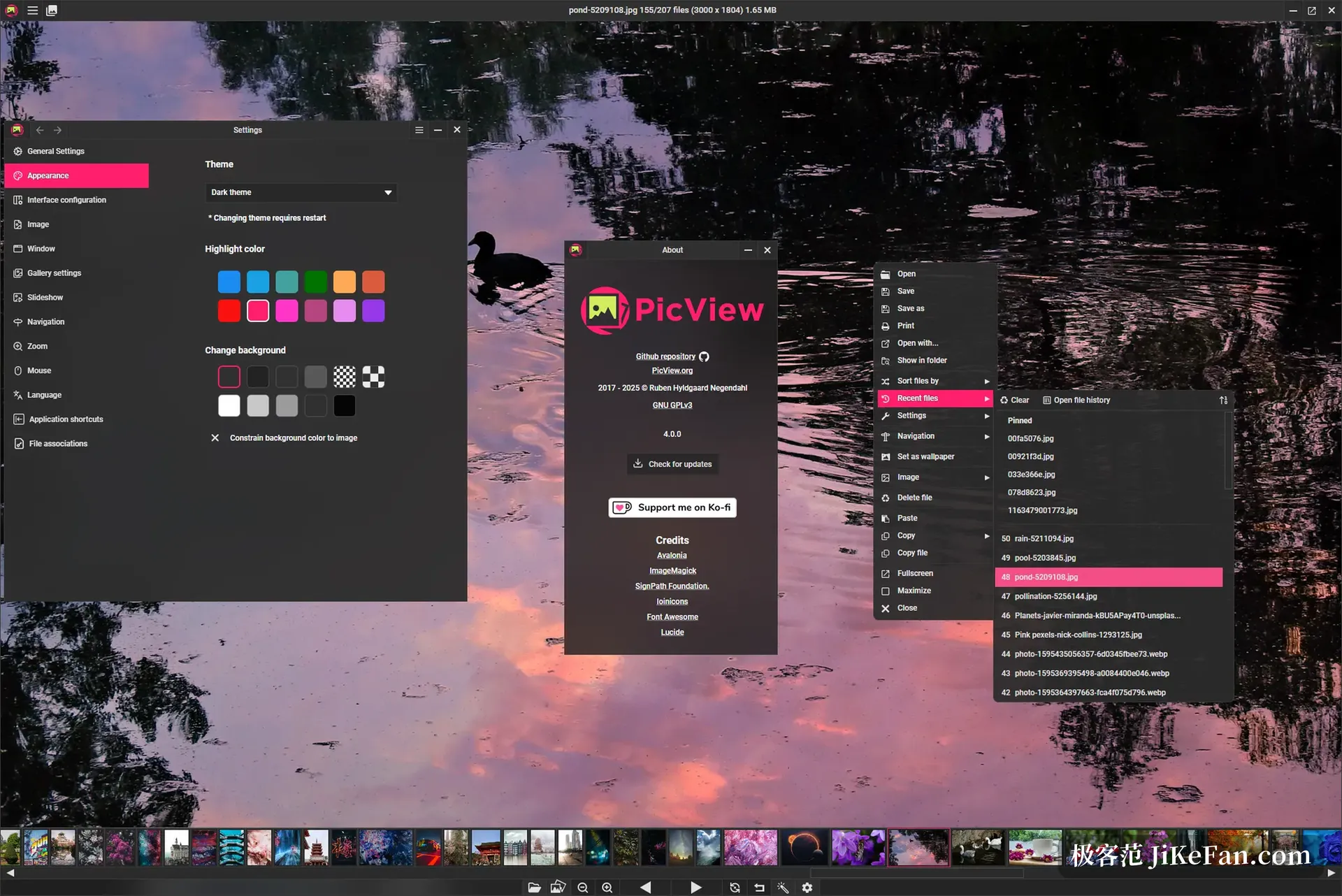
The window itself stays light. Alt+Z hides both the toolbar and the title bar for a full screen of image, and holding Shift lets you drag that borderless frame around.
Shortcuts sit where fingers expect them: I for image info, G for the thumbnail gallery, C for crop, F2 to rename in the title bar, F4 for settings. The wheel zooms the picture rather than the window, and the arrow keys turn pages, so inspecting a long scan never needs a mode switch.
Comic archives open as albums
ZIP, RAR, CBR and CBZ files need no unpacking; drop one in and you have a browsable album. Version 5.2.2 closes a trap: when a package holds several folders, pages now run in folder order, so entry 001 of volume one sits before entry 001 of volume two instead of interleaving.
Broken pages behave better too. A single damaged page used to make the whole package refuse to open, and now the reader skips it and carries on.
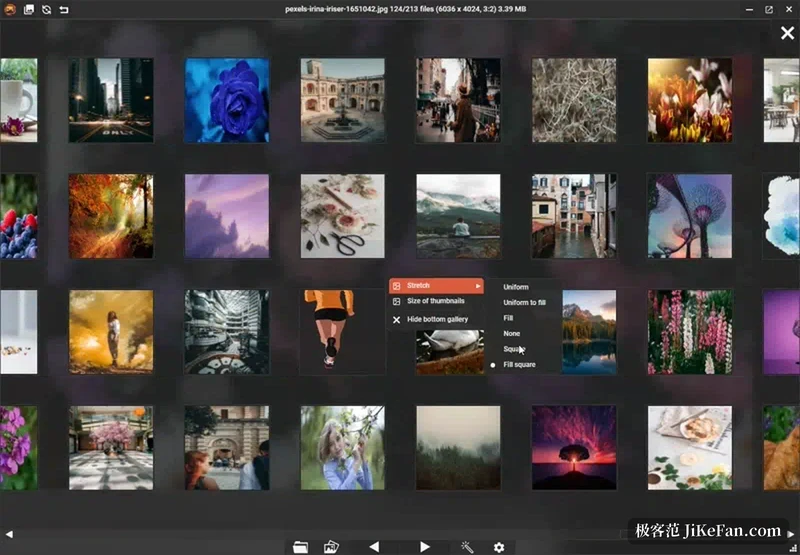
Slow scrolling in the gallery accumulates instead of snapping back to the start, thumbnails take far less memory, and a folder of several hundred images opens noticeably lighter. Copying out of the gallery hands you the original file rather than the preview.
An archive read as an album lives or dies on trustworthy ordering; get the sequence wrong and turning pages means nothing.
History that follows each tab
This is the most useful change in 5.2.2. Every tab keeps its own back-and-forward trail: one sits on page 40, another waits on page 3 of a different folder, and switching back finds each where you left it.
The trail follows the file as well, so renaming an image does not break the entry, and TIFF files or pages inside an archive count the same way.
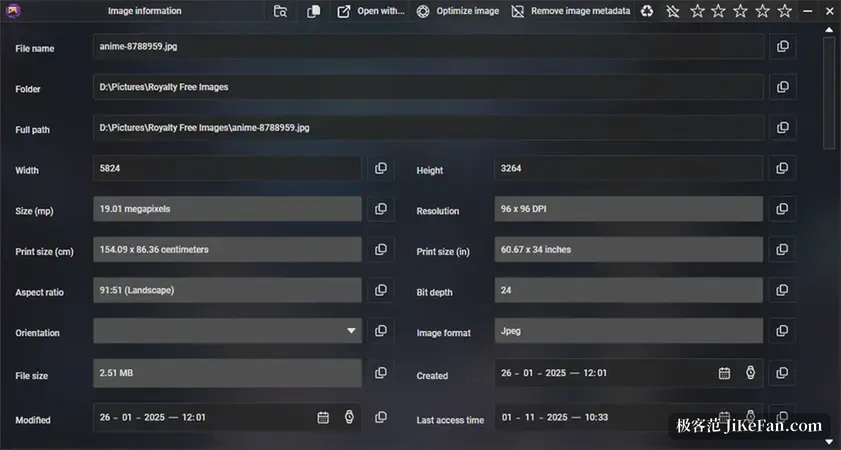
The same release adds a Close image action, which drops the picture you just finished while the tab and the program stay open. In the info window the keywords label is now editable and copyable, and together with the star rating on the toolbar it sorts material without a second tool.
Resize and convert while you look
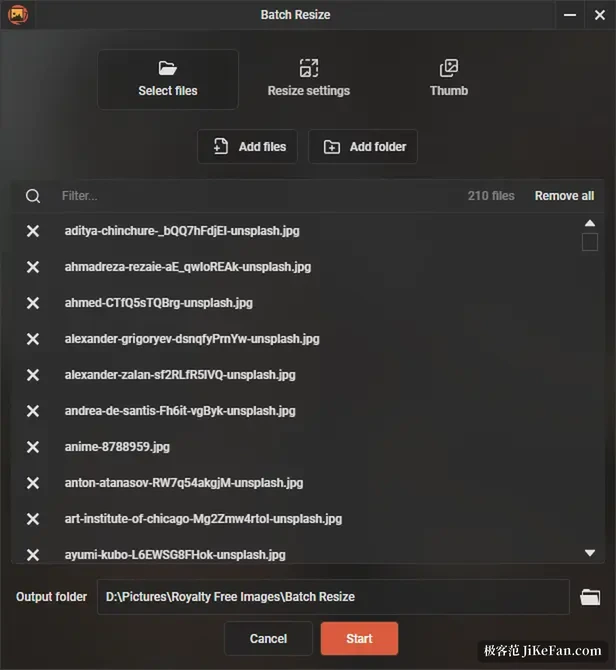
The batch window splits into picking files, adjusting settings and generating thumbnails. Chosen images land in one table where you can strike individual rows, and the output folder is set separately.
Conversion, compression and scaling by width, height or percentage all sit in the same dropdown, with aspect lock on by default, and the thumbnail column produces up to seven sizes in one pass, each in its own folder.
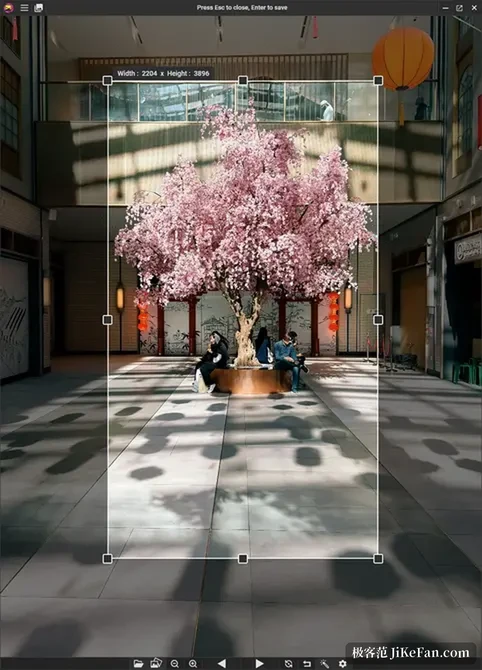
Single files go faster. Press C for a crop box that shows live pixel dimensions, Shift locks it square, Enter saves and Esc discards.
Renaming through F2 in the title bar also swaps the extension, and the image lands in that format, which is a cheeky trick that still beats opening a second conversion window.
Free, open source, portable
PicView ships under GPL-3.0 with the source on GitHub. The Windows build comes both as an installer and as a portable copy that writes no registry keys and needs no external runtime, so a USB stick carries it, and the project site states there are no pop-ups and no tracking.
The info window reads EXIF, covering capture time, camera settings and even GPS coordinates that jump straight to a map.
Good looks were never the point: two themes, light and dark, a changeable accent colour and a toolbar that folds away, which is enough and no more. File associations must be ticked in settings, since the installer claims no double-click. PicView suits people who treat viewing as a daily motion: many assets, messy folders, and a wish to see the next picture quickly.