
OSFMount Review: Turning an Image File Into a Real Drive Letter
Summary
Optical and raw disk images mount as ordinary drives with a letter, open in the file manager, and unmount without a trace. Read only mounting protects the evidence, and a RAM disk is faster than any physical one.
Recommend- Name
- OSFMount
- Version
- 3.1.1001
- Pricing
- Free
- Open source
- Proprietary
- Operating system
- Windows
- Updated
- 2026-10-08 12:17
An image file is a disk waiting to be mounted
Every ISO and every raw image of a disk is, functionally, a filesystem with no drive letter attached. The usual workarounds are all slightly wrong. Extracting the contents costs disk space and destroys the structure that made the image worth keeping. Booting a virtual machine to look inside is heavy for the purpose of reading two files. Mounting it, which is what the image was designed for, is the lightest option and the one most people forget exists.
This tool does that one job and does it properly. An optical image or a raw disk image is attached as a virtual drive with a letter, appears in the file manager, and behaves exactly like a physical volume: double click to open, copy the files out, navigate as usual. Several images can be mounted at the same time without interfering with each other. When the work is done, the drive is detached and the system is back to what it was, with no installed driver left behind and no leftover folder to delete.
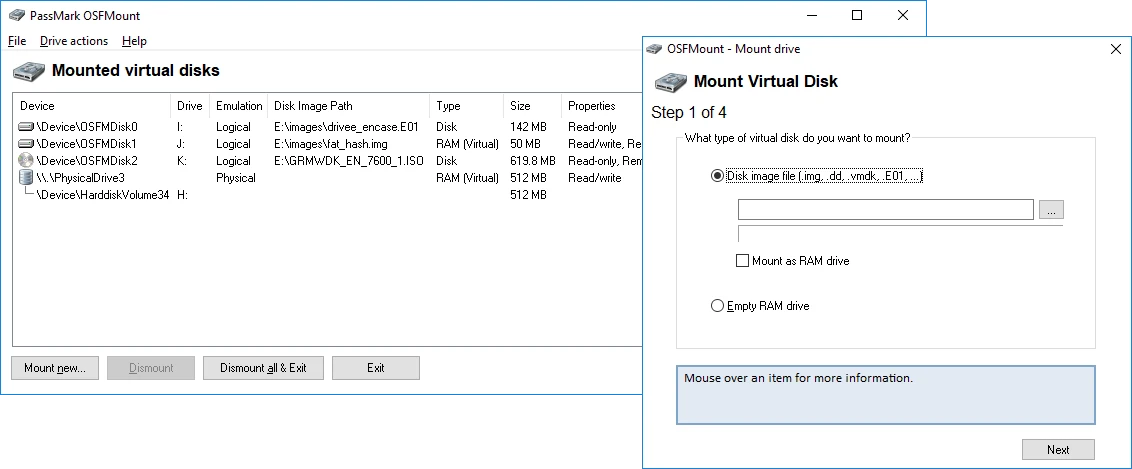
Two details that show the craft
The first is read only mounting, and in a forensic or verification context it is the whole point. A mounted read only volume cannot be written to, so nothing you do while browsing can alter the source. For someone examining an image of an unknown provenance, or comparing a captured image against a hash, that discipline is not a convenience but a requirement. A tool that mounts read write by default and hopes the user is careful is a tool that will eventually destroy someone's evidence.
The second is the RAM disk, which is a different feature hiding under the same roof. A block of memory is presented as a drive, and its speed is limited by memory rather than by any cable or controller, which makes it the right place for temporary files, extraction caches and scratch space for a large build. It also disappears completely when the machine is powered off, so whatever sensitive material was written there goes with it.
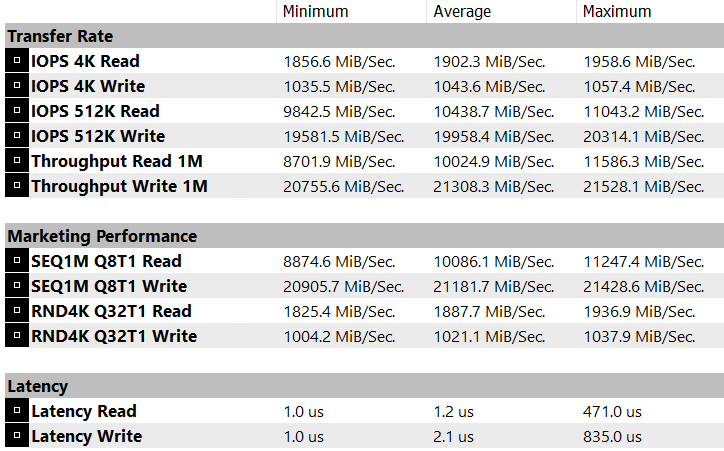
The restraint is worth studying: mount when asked to mount, refuse writes when told to refuse them, be fast because it lives in memory. Each function stays inside its own boundary.
Automation is not an afterthought
The command line interface is complete, which turns a manual routine into a script. An analyst who processes a batch of images every week can mount them all, extract the parts that matter, and unmount, without touching the interface. A build process can attach a disk image before a test run and detach it afterwards. That availability is what separates a utility that is convenient once from one that becomes part of a workflow.
The vendor has spent years in the forensic field, and it shows in small ways: the mount options are documented, the behaviour with unusual partition layouts is considered, and the tool does not try to be clever about what it finds inside. Whether that pedigree matters to you depends on what you are mounting, but for anything where the answer has to be defensible, it is a reasonable reason to prefer it.
Habits that avoid the obvious mistakes
Mount unknown images read only, always, without exception. Give the RAM disk a size you can afford rather than the largest number the dialog accepts, because a RAM disk takes memory away from everything else and the symptom of an overgrown one is a system that starts swapping. Unmount before deleting or moving the source image, since a mounted image is in use and the file will appear locked. And note the drive letter you chose, because on a machine with several network drives the wrong letter is a confusing five minutes.
If a mount fails, the cause is usually the image rather than the tool: an incomplete download, a segmented format, or a filesystem the system does not recognise. Check the size against the expected one first, and treat a mismatch as the answer. Two minutes of verification saves an afternoon of blaming the software.
What it is not for
It is not a converter, an editor or a repair tool. It will show you what is inside an image and let you take things out, and if the filesystem inside is damaged it will show you a damaged filesystem. For conversion there are other tools, and for repair of a mounted image the correct approach is to copy the data out first and work on the copy. Expecting more from a mounting utility is the usual source of disappointment with it.
Nor is it a replacement for proper backup verification, though it helps with it: mounting a recent image and opening a few folders is a five second sanity check that most people skip. Do that check, once, after every backup. It is the cheapest insurance in the whole discipline.