
GlassWire 3.11.1164: the traffic graph shows who is online, and the free tier keeps twenty-four hours
Summary
GlassWire 3.11.1164 is an application firewall with traffic visualisation for Windows and Android. The free tier keeps twenty-four hours of history and opens four views by program, host, protocol and country; the pop-up prompt and custom profiles sit on the paid side.
Recommend- Name
- GlassWire
- Version
- 3.11.1164
- Open source
- Proprietary
- Operating system
- WindowsAndroid
- Website
- https://www.glasswire.com
- Updated
- 2026-10-20 16:42
Two jobs that usually live in separate programs end up on one screen here. A coloured curve shows which program is talking to the network and how much it moved; a firewall decides whether it may. The question that sends most people looking for a tool like this is simple, and it is not a security question at all: what exactly is uploading right now?
What sits on the screen
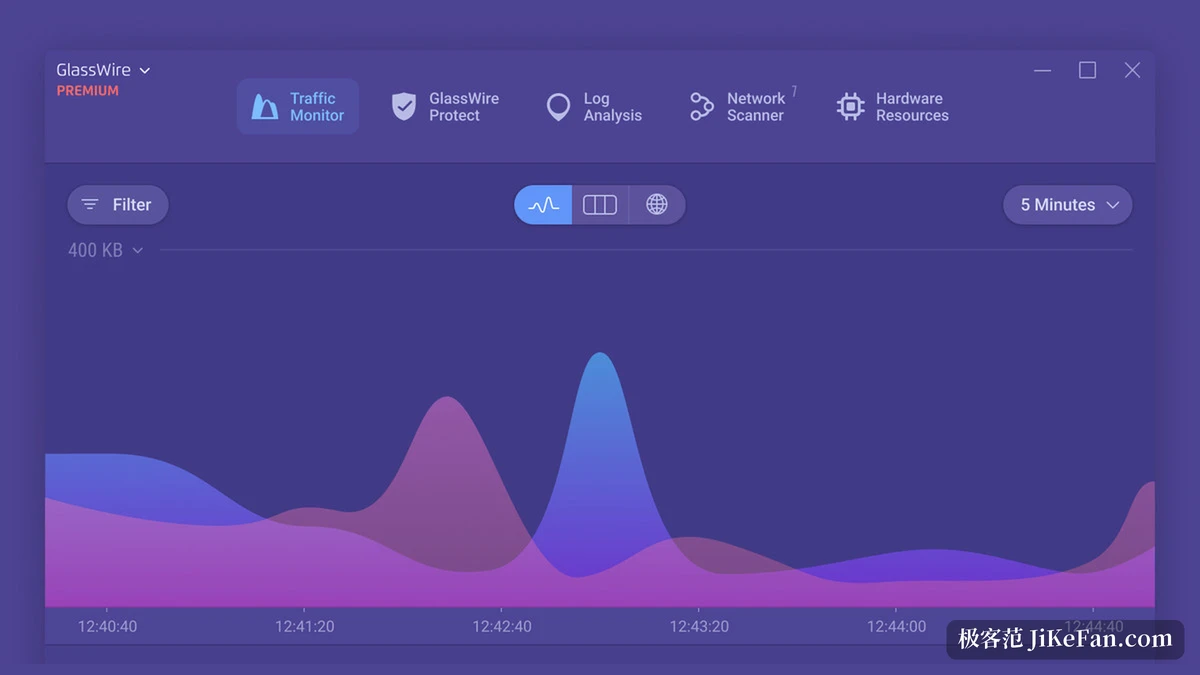
GlassWire opens on Traffic Monitor. Five entries run along the top, for traffic, protection, log analysis, network scan and hardware resources. A bandwidth curve spreads across the middle over time, two layers of blue and violet standing for upload and download, and moving the pointer over it reads off the figure at that moment.
Below the curve sits the summary for the same stretch of time: the current rate, the total, and the split between local network and the wider internet. A time granularity selector in the top right steps down from five minutes to an hour to a day. The information density is high, yet the layering stays clear enough that a first look tells you what is happening.
What 3.11.1164 changed
The version on the download page is 3.11.1164, and the installer comes to about 118 MB. The listed changes amount to two things. Batch firewall actions let you select several entries in the application list and allow, deny or remove them in one go. GPU data collection became steadier, so the readings for video memory and utilisation are more dependable than they were.
A short list usually means the line has settled. For anyone using it, the gain from upgrading sits in those two batch actions, and on a machine with many applications installed, finishing in one press saves real time.
Where the free tier stops
The pricing page lists every feature item by item. The free tier is aimed at personal use and the page marks it as free forever. It carries the traffic graph, twenty-four hours of network history, the day's alert log, bandwidth usage, the network scan, per program readings for processor, memory, video memory and disk, first connection records, and community support.
What the paid tiers add gathers on the managing side: a prompt for new connections, custom firewall profiles, lock down mode, two way firewall control, unlimited history and alert log, export of usage data, an interactive world map, alerts for new devices, detection of duplicate hotspot names, ARP spoofing detection, remote desktop connection recognition, and dedicated support.
That line is worth understanding before installing. The free tier lets you see clearly; the paid tiers let you hold the gate. Plenty of people discover after the fact that the two features they actually wanted sit on the paid side.
Part | Free tier | Paid tiers |
|---|---|---|
Traffic graph | Yes | Yes |
Network history | 24 hours | Unlimited |
Views by program, host, protocol, country | All four | All four |
Allow or deny from a pop-up | No | Yes |
Custom firewall profiles | No | Yes |
Lock down and two way control | No | Yes |
Network scan | Yes, no new device alert | Yes, with alerts |
Export usage data | No | Yes |
How the firewall behaves
Once installed it works alongside the firewall already in the system, and it records a line whenever a program opens a connection. With the prompt switched on, a program reaching the network for the first time raises a small window: the name and path on the left, the remote domain and the flag of its country below, and allow and deny buttons at the bottom.
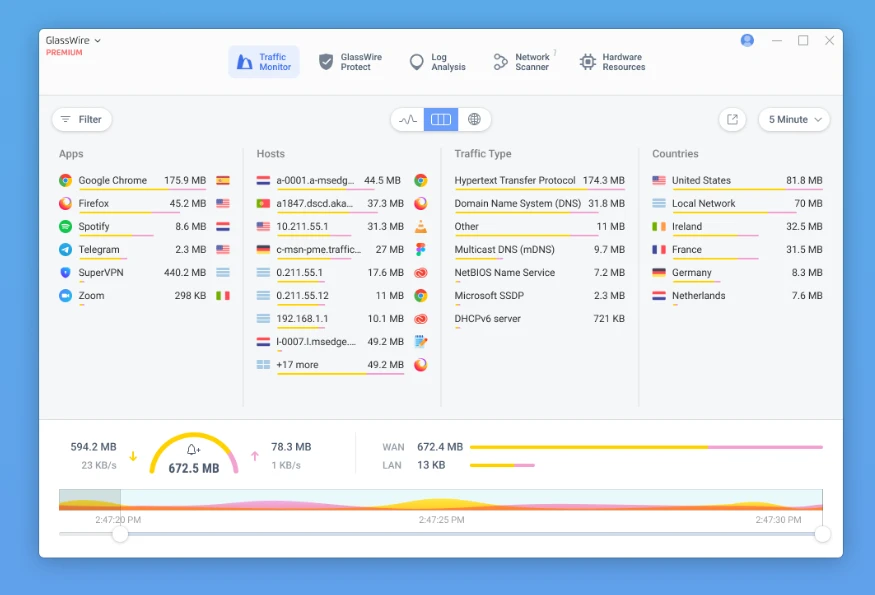
Choose deny and that program's outbound connections are blocked and written to the log, so later you can find the moment it was stopped. The list switches across four dimensions, by program, by host, by traffic type and by country, and when the question is who is quietly uploading, that change of viewpoint does most of the work.
Looking back: the time machine
The graph scrolls backwards, a feature the vendor calls the network time machine. The free tier keeps twenty-four hours and the paid tiers keep everything. For questions such as what caused that stutter a moment ago, reading the graph beats reading a log, because a spike on the curve points straight at a program.
The same stretch of time also splits along several axes: which program used the most, which hosts it reached, which protocol carried the traffic, and which country the other end sits in. All of those views are open in the free tier.
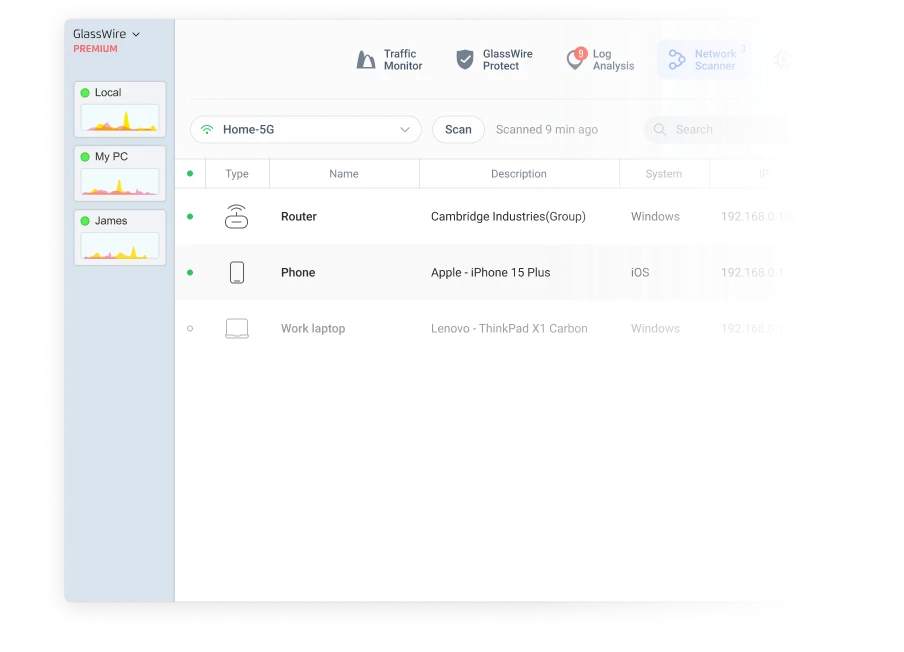
The network scan lists the devices on the same subnet, routers, printers, phones and television boxes, so who is online takes one look. Whether a new device raises an alert depends on the tier, and the free one does not include it. In a house with many devices, that list saves a walk through the router administration page, especially for something that arrived for a short visit.
There is an Android build too
The phone has its own version, distributed through the app store. It counts traffic and raises alerts; the firewall logic of the desktop does not carry over to a phone, and the two are separate product lines under one brand, with no data shared between them.
Limits and preconditions
This is closed source commercial software. The free tier has no time limit and the paid tiers run by subscription. Platforms are Windows and Android only; the download page offers one installer and one app store entry, and there is no macOS build at present.
A tool of this kind needs to read the network activity of every program, which requires being installed on the machine itself and holding enough system permission. Change machine or change account and the history does not follow. Across several machines, that is worth thinking about in advance.
When it earns its place
To find out who a Windows machine is actually talking to, or to put a gate in front of programs you do not recognise, both jobs land in one interface and the free tier covers most of the need. Watching the curve for a few days after installing teaches more than any written explanation.
Turn it around, and a static block list or enterprise wide policy distribution is a different problem; a single machine tool is the wrong shape for either.
GlassWire merges two things that used to be separate: the graph makes clear who is online, the firewall decides whether to let them through. Version 3.11.1164 added batch actions, the free tier keeps twenty-four hours of history and the four views, and the prompt and custom profiles belong to the paid side.