
PetalDesk 0.8.9 puts notes, passwords, one-time codes and screenshots on one desktop
Summary
PetalDesk keeps Markdown notes, an encrypted password vault, one-time codes, a screenshot tool on a single key and a task chart inside one application, with every file sitting in the documents folder of the local machine. Version 0.8.9 adds a network check tool that reports latency and loss for Ping, TCP and UDP probes.
Recommend- Name
- PetalDesk
- Version
- 0.8.9
- Pricing
- Free
- Open source
- Proprietary
- Operating system
- WindowsmacOS
- Updated
- 2026-11-06 23:00
Desktop utilities tend to pile up one at a time: a note tool, a password tool, a code tool, a screenshot tool, each holding its own slot in the tray. PetalDesk gathers them into a single application and keeps everything in the documents folder of your own machine.
What it is, before anything else
PetalDesk is a desktop productivity tool for Windows 10 and 11 and for macOS 12 and later, currently at version 0.8.9. It does not sit neatly in one category: install it, open it, and there is no account box and no sign-in page, only a note. The rest of the tools are called up from the tray or the main window when they are needed.
The trade behind that choice is stated on the project's home page: keep the ideas on the desktop, keep the files in your own hands. In daily use it means no registration and no dependence on a cloud: with the network down everything still works, all content lands in a local data folder, and moving to another computer is a matter of copying that folder across.
Notes are the main act, each with its own temper
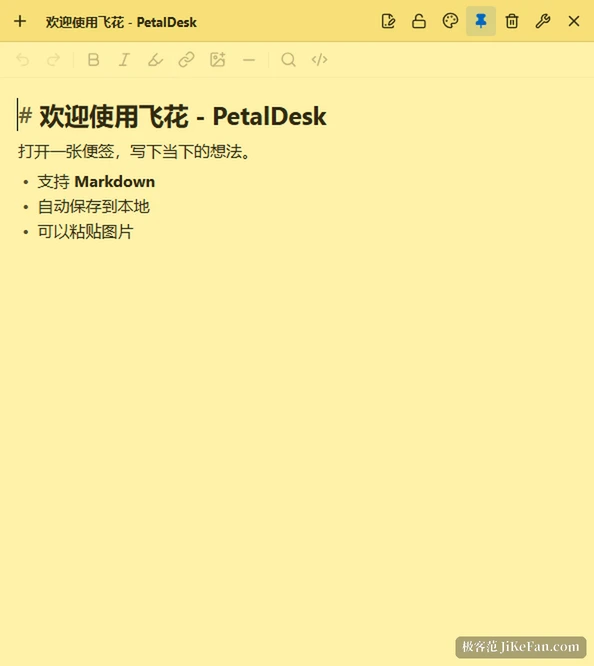
Notes are Markdown with live layout by default, rendered as you type, so there is no switching between an edit pane and a preview; any note can be flipped to plain text on its own. Title, colour, pinning, read-only state, window position and window size are all remembered per note, so one reopens exactly as it was left. Selecting text copies it automatically, which saves the extra keystroke when lifting a paragraph out.
Every note is its own window, with a list entry at the top right that jumps straight to the others. Closing one does not quit the program, it folds back into the tray to be called up again, and on Windows it can be set to sit there silently from startup. Deletion asks twice and sends the note to a recycle bin first, while the body supports undo, redo and autosave.
The vault and the codes make a pair
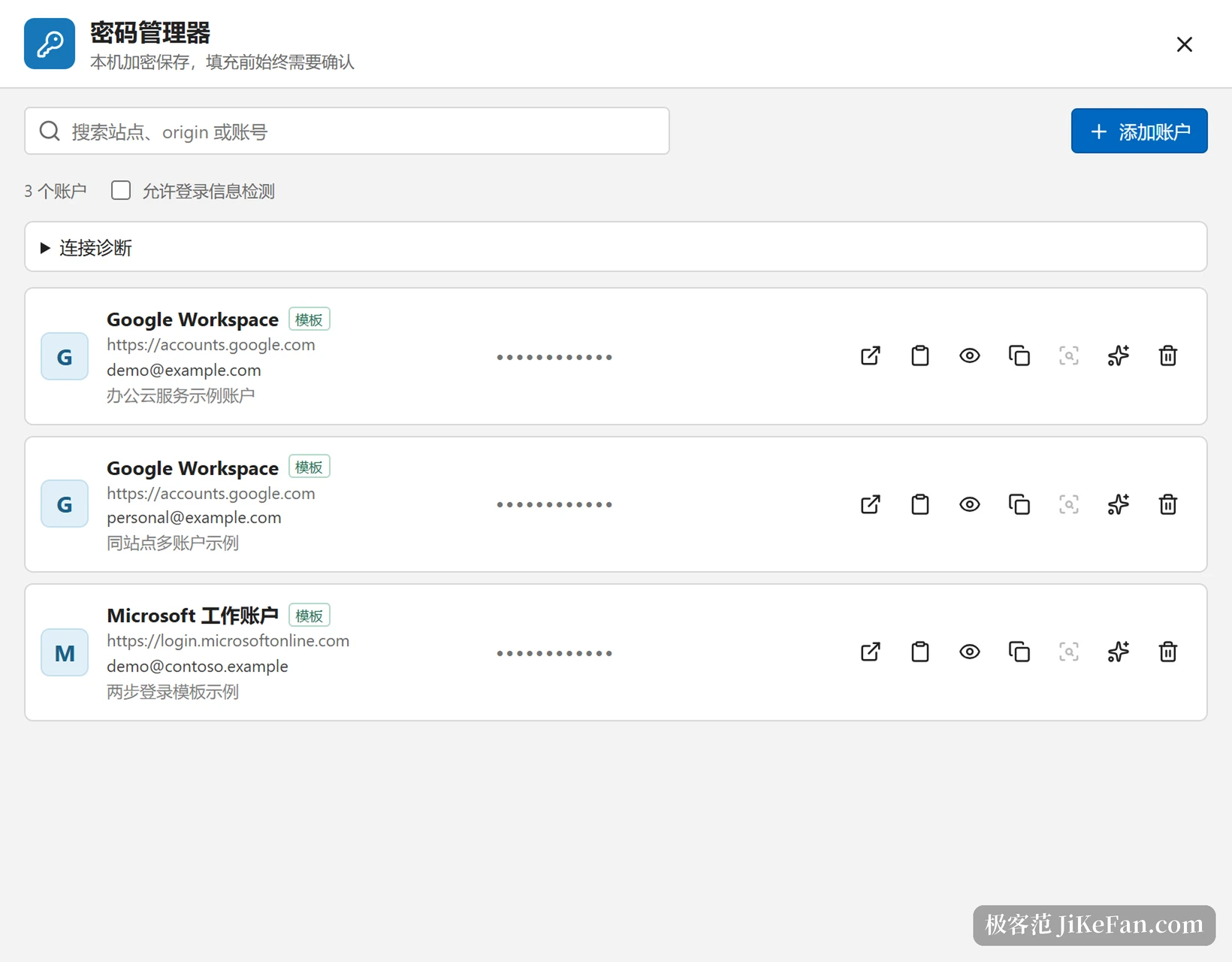
The password manager keeps site accounts in a separate vault encrypted with XChaCha20-Poly1305, unlocked day to day by the system's own DPAPI, and it shares one recovery password with the code generator so only a single secret has to be remembered. Companion extensions for Firefox and Chrome carry the vault into the browser: the toolbar badge shows how many accounts exist for the current site, clicking an account card fills the form, and then it stays quiet instead of pressing the sign-in button for you.
The code generator follows standard TOTP and can import secrets created elsewhere. Scanning a code, reading an image, following a link or typing by hand all work, and a whole list can be imported one entry per line. Codes are hidden by default, a double click copies one, and frequent entries can be dragged into order or pinned from the context menu. After confirming with the recovery password the secrets can be exported as Base32, as an otpauth link or as a code image, so changing machines does not lock you out of your own accounts.
One key is enough for a screenshot
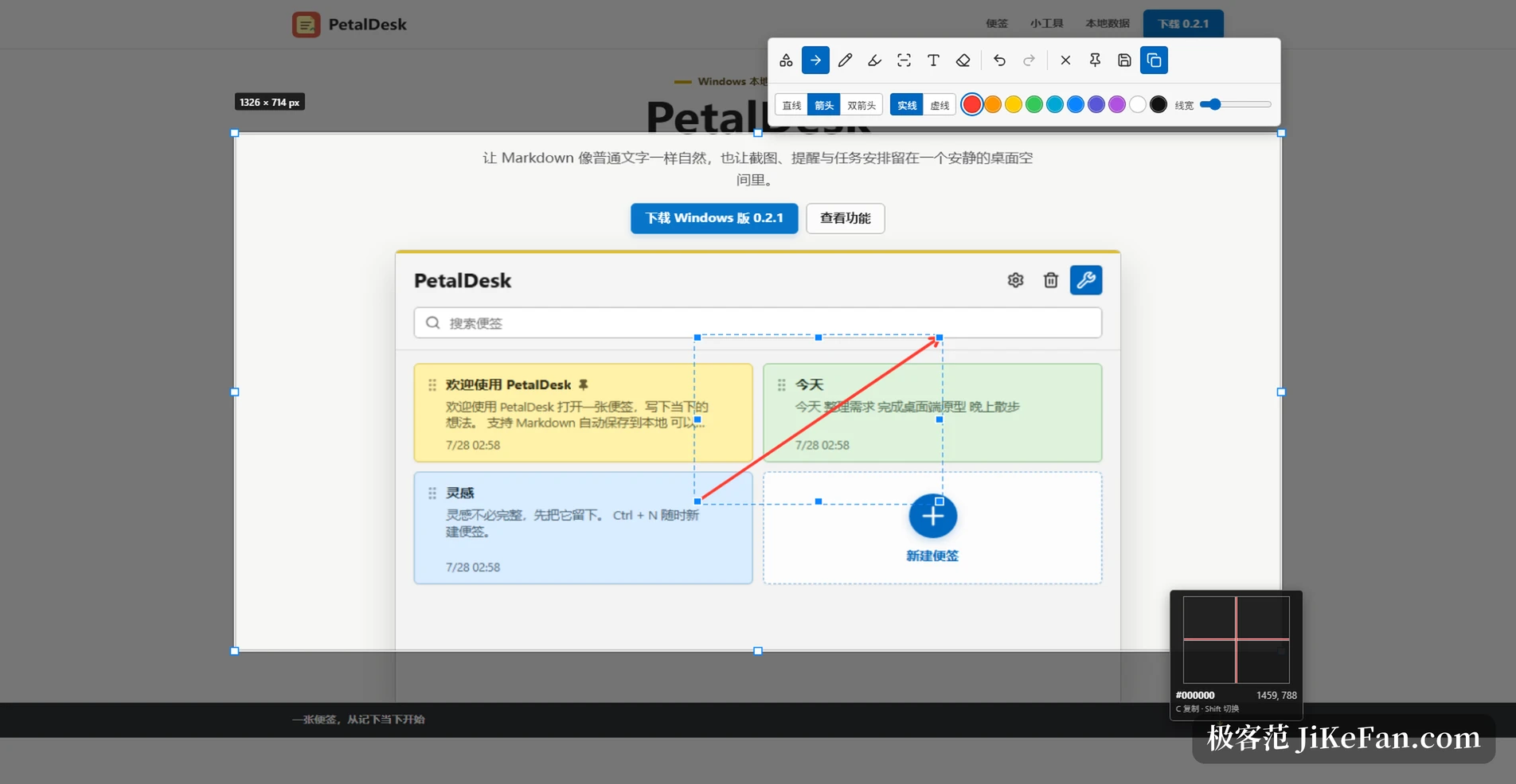
The screenshot tool opens on a global shortcut. After dragging a region it offers annotation, mosaic and blur, then copy, save, or pin the result on screen as a reference. Long page capture on Windows stitches as you scroll: frame a fixed region, go back to the window and scroll down, press finish and the strip is joined live, with pause, retry and step back available along the way. Automatic scrolling is the other mode: once the extension is installed nothing extra is needed, and the tool switches to a scroll positioning that suits long pages.
Projects and countdowns come along too
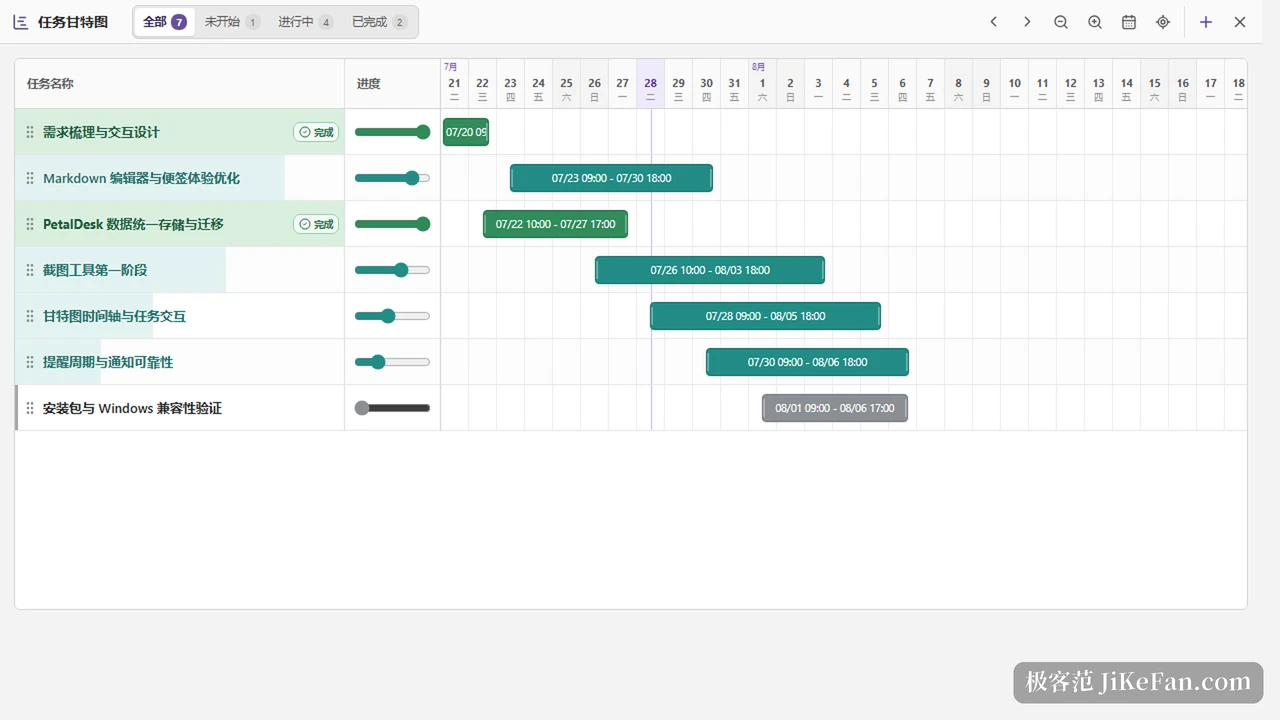
The task chart supports sorting, filtering by progress and dragging the bars, and the view zooms from hours all the way out to a monthly plan, which suits a stretch of work that has a sequence to it. The timer shows its digits in a transparent valve style and can be set as a one-off reminder or repeat by day, week, month or year, arriving as a system notification when it fires.
What 0.8.9 adds is diagnosis
This release brings a network check tool for Windows with three probes, Ping, TCP port and UDP port, each reporting per-attempt latency plus the minimum, average and maximum, the jitter and the loss. Ping goes through the system's IcmpSendEcho call rather than a raw socket, so it needs no administrator rights and works from an ordinary account.
UDP deserves a paragraph of its own. There is no handshake, so a request that gets no answer may mean the port is open but the service does not reply, or that a firewall dropped it silently, and the protocol cannot tell those apart. PetalDesk therefore refuses a yes-or-no verdict and reports three states instead: answered, ICMP port unreachable received and therefore certainly closed, or timed out with nothing at all and therefore open or filtered but undetermined. For DNS and NTP it sends a real protocol request and only raises the verdict to certainly open once an answer comes back.
Where the data lives, and how to move it
Notes, settings and tool data all sit in a PetalDesk folder inside the documents directory, and the location can be changed in the settings. Each note gets a subfolder whose body is a plain Markdown file, with images in a resource folder beside it, and no proprietary database is involved, so another editor can open the file directly.
Writes go to a temporary file first and are then swapped in atomically, so a power cut never leaves half a file behind. When several windows or a syncing drive write the same file at once, both versions are kept in a conflict folder rather than one being silently overwritten. The program keeps the last five backups automatically, and deleted notes can be recovered from the recycle bin. Copying the whole directory to another computer moves everything with it.
The platforms are not quite equal
Windows and macOS both offer notes, the chart, timed reminders, screenshots and the code generator, but on macOS the first screenshot needs screen recording permission granted in the system settings, and the codes are protected by the system keychain instead. The password manager and long page capture are Windows only for now and absent from the macOS build, which the capability table on the project site states plainly.
Fitting six things into one application costs depth: none of them is likely to go further than a dedicated tool would. PetalDesk takes the other direction and subtracts instead, turning the small tasks that most easily interrupt a train of thought into one layer that answers at once and retreats to the tray the rest of the time. For someone who does not want a row of icons on the desktop, and does not want notes and passwords handed to a cloud, that measure is probably about right.
The point is not the number of features. It is squeezing a quick line of text, a quick password and a quick screenshot into the same window, with the data staying in your own documents folder.