
Hasleo WinToUSB: A Windows Installation That Fits in a Pocket
Summary
Hasleo WinToUSB moves a complete Windows installation onto a USB disk so a machine can boot into a personal desktop from a pocket. It deploys from an image or clones the running system, and the quality of the result depends mostly on the drive used.
Recommend- Name
- Hasleo WinToUSB
- Version
- 5.9
- Pricing
- Paid
- Open source
- Proprietary
- Website
- https://www.easyuefi.com/
- Updated
- 2026-10-06 22:34
Copying the files is the easy part
Putting a Windows installation onto a removable disk sounds like a copy operation and is actually three problems wearing one coat. The files have to arrive intact, which is trivial. The firmware of the machine being booted has to accept that disk as a boot device, which is mostly a matter of the disk being formatted and partitioned in a shape the firmware understands. And the installation has to survive being moved to hardware it was not installed on, which is where most attempts fail: a system imaged from one machine wakes up on another and discovers a different storage controller, a different network chip, a different everything, and either copes or does not.
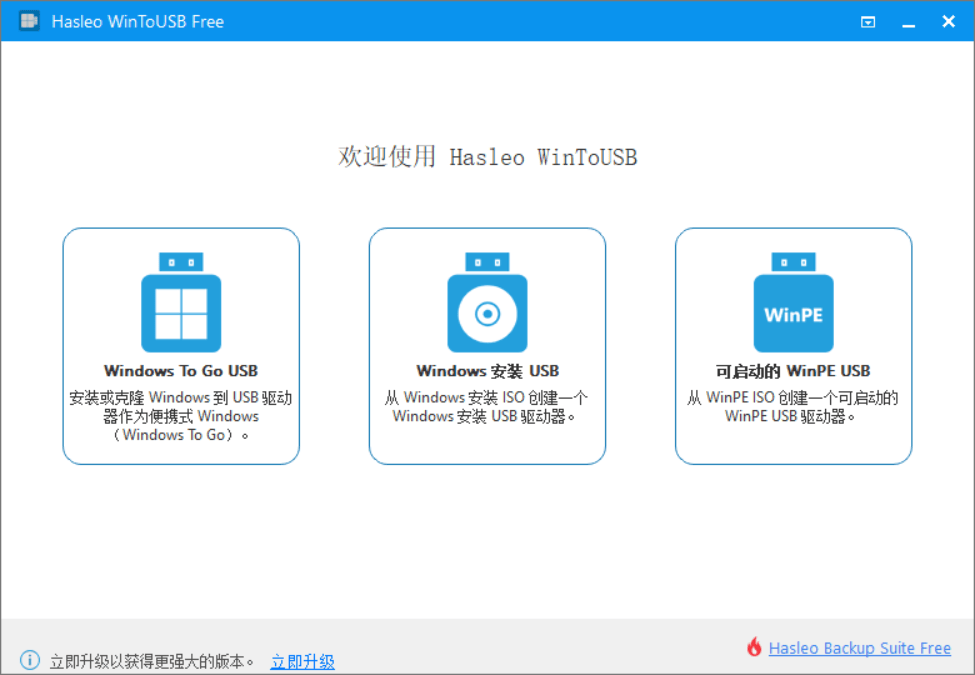
Hasleo WinToUSB is a tool for solving all three at once, on Windows, for ordinary removable disks rather than only for the certified drives that a formal corporate programme once required. Its purpose is a portable workspace: a machine that is not yours, booted into an environment that is entirely yours, with your applications, your settings and your files on a disk in your pocket.
Two routes, and they answer different questions
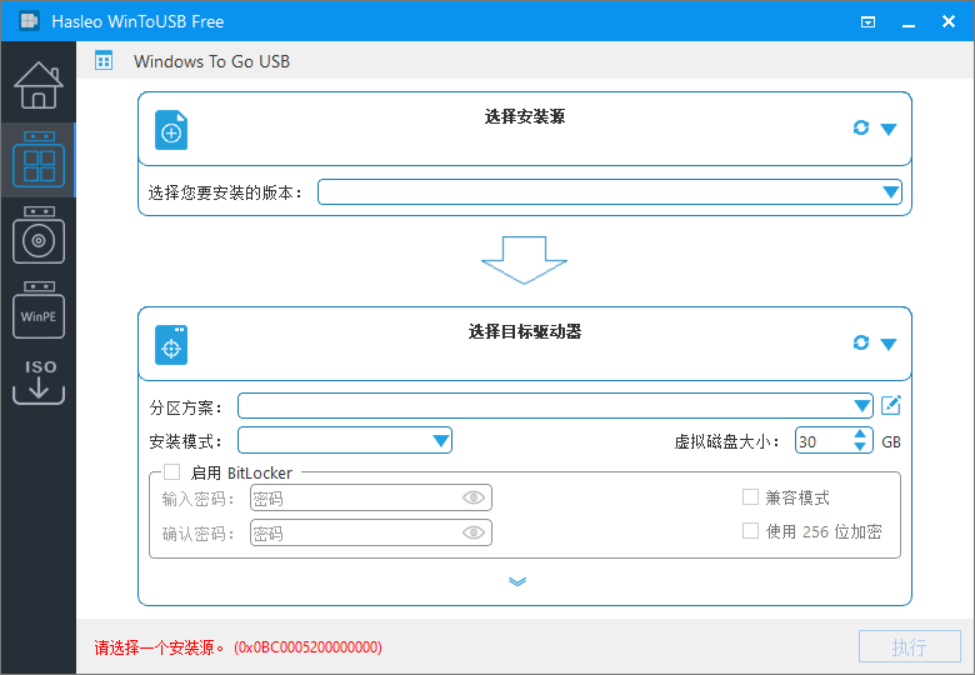
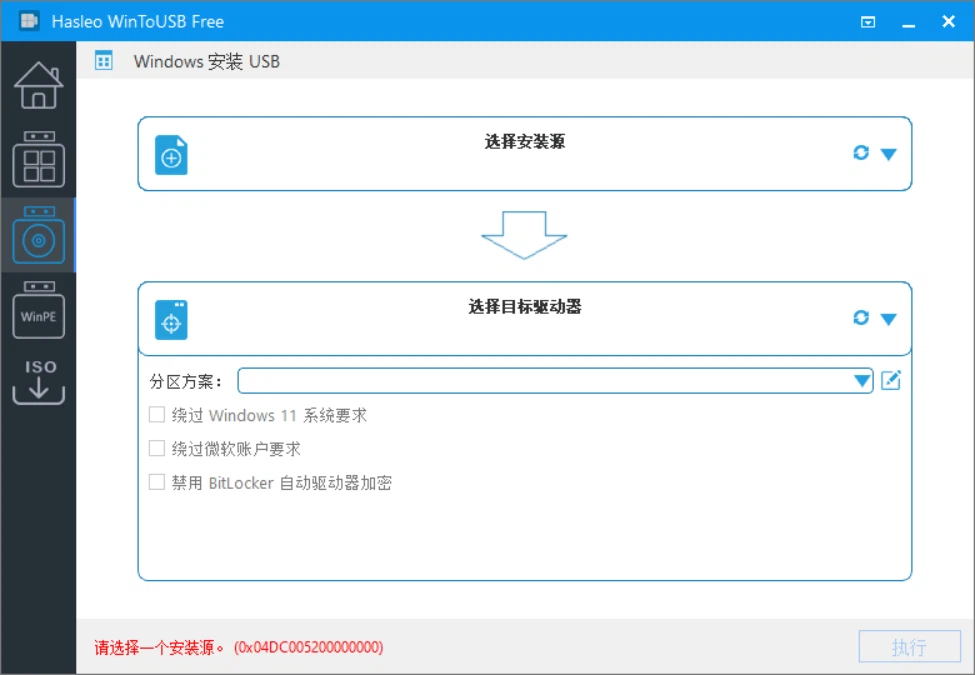
The first route deploys from an installation image or from installation media. The tool prepares the target disk, partitions it, applies the image and makes it bootable, which turns a system that has never run anywhere into one that runs from the disk. This is the route for building a fresh portable environment, and it is the one that behaves most predictably, because a newly deployed system has no history to carry across.
The second route clones the system that is currently running, keeping its configuration and its installed software. That is the route for people who want the machine they are using, portable, without rebuilding it: the same account, the same applications, the same arrangement of the desktop. It is also the route with the more interesting failure modes, because a cloned system carries assumptions about the hardware it came from, and those assumptions are exactly what a new host may not satisfy.
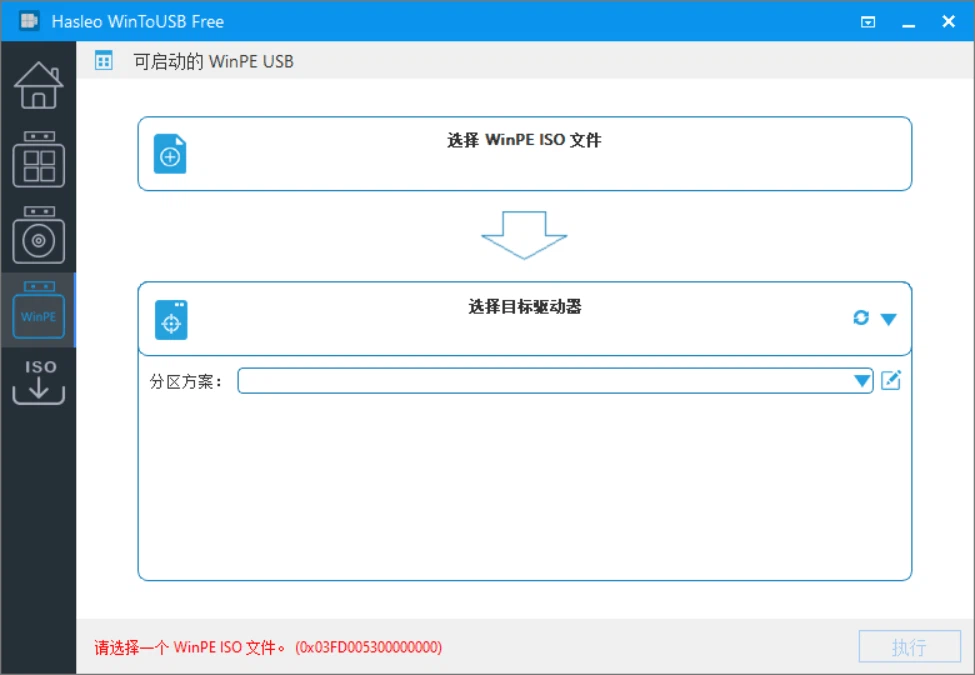
A third capability sits beside the other two: building a small rescue environment on removable media, for the day a machine will not start and the only way in is from outside. It is the least used part of the product and the one people are most grateful for.
What actually decides whether the result is usable
The single largest factor is the disk, and it is not close. A system on removable media does not merely read files; it runs an operating system from that device, continuously, with the same expectations of latency that an internal drive meets without effort. A conventional flash stick has the sequential speed for the copy and none of the random access for the running: the result boots eventually, hesitates constantly, and gets hot enough in a closed case that its own lifetime shortens. A solid state drive in an enclosure changes the experience completely, because it removes the bottleneck the whole idea depends on.
The second factor is the host machine's firmware and its drivers, which no tool can fully neutralise. Older systems prefer an older boot arrangement and older controllers; newer ones expect the current one, and a disk prepared for the wrong shape is simply not offered as a boot option. The tool supports both arrangements and supports ordinary, uncertified disks, which is the practical difference between a portable system and a specification.
Free and paid, and where the line falls
The product is commercial with a free tier, and the split is legible rather than mysterious. The free tier does the two things most people came for: cloning a running system and deploying from an image. The paid tiers add the parts that matter to an organisation - faster cloning, disk encryption for the portable system, support for server editions, and a licence that permits commercial use - along with the ability to write the portable system into a virtual disk file rather than directly onto a partition, which is useful when the target is not one disk but several.
That last capability deserves a note because it is a design choice rather than a feature. A portable system stored as a virtual disk file is a file that can be copied, archived and kept on the same media as other things, instead of an entire device consumed by one purpose. It also makes the disk's own partitioning a matter of choice rather than of the tool's opinion.
What to know before starting
Three practical warnings belong in any honest description. The target disk is prepared, which means it is erased, so anything on it is gone before the process begins. The result inherits the driver set of the system it came from, so a clone that works perfectly on the machine it was taken from can fail to see the network on a different one, and the fix is usually to install the missing drivers onto the portable system deliberately rather than to conclude the method does not work. And a system on removable media is slower than the same system on an internal drive by a margin that varies from slight to painful, which is the reason the tool is at its best as a portable environment and at its worst as a permanent replacement for an installed one.
Who needs this
Three kinds of user account for most of the installs. The first is the person who maintains machines: a rescue environment that boots on hardware that will not start is worth more than any diagnostic suite, because it works when nothing else can run. The second is the person who works across several computers and would rather carry one environment than reconcile several: the same desktop, the same applications, on whatever machine is at hand. The third is the person who has to test something on a clean system without destroying the one they are using, and for whom a portable installation is a cheaper answer than a second computer.
For everybody else, the honest advice is that a modern laptop with an encrypted internal drive already does most of what this is for, and does it faster. The portable system is not a better computer. It is a computer that fits in a pocket, and the value of that property depends entirely on how often one is standing in front of a machine that is not one's own.