
UNetbootin 7.02: 29 distributions built in, open source on three platforms
Summary
UNetbootin writes Linux distributions onto a USB stick. It carries a built in list of 29 distributions and 12 system rescue tools, accepts an ISO you already have, and ships a separate installer for each of three platforms.
Recommend- Name
- UNetbootin
- Version
- 7.02
- Pricing
- Free
- Open source
- Open source
- Operating system
- WindowsLinuxmacOS
- Website
- https://unetbootin.github.io/
- Updated
- 2026-10-17 16:15
Putting a system on a USB stick did not fade away when cloud hosts and virtual machines spread. UNetbootin belongs to the group that has lasted on that road, and it has kept one shape for over a decade: choose a distribution and write it to a stick, both inside the same window, then and now.
One stick in place of a disc
The site describes itself plainly: it makes a bootable Live USB stick for Ubuntu and other Linux distributions without burning a disc along the way. Bootable and no disc are the two reasons the category exists at all, replacing a one time optical medium with flash memory that can be written again and again.
Input splits into two roads. One lets the software fetch what it needs, drawing on a built in distribution list so a selection downloads and writes itself. The other hands the decision back, taking an image file you already hold. On screen the two are radio buttons, one named Distribution and one named Diskimage.
The target side also offers two choices: a USB drive, or a hard disk. The second only appears in the list once show all drives is ticked, and the site appends two words to that option, use with care, because the wrong drive letter costs the data on an entire disk.
The built in list: 29 distributions and 12 rescue tools
The supported distributions section lists the built in entries one by one, and counting them gives 29. They cover the everyday desktop choices, light editions aimed at older machines, and a number of independent branches, with the Debian family, the Arch family and the Slackware family among them, and two BSD systems mixed into the same list.
A second list follows under system tools with 12 entries: partitioning and data recovery utilities, boot repair tools, rescue disc images from a few security vendors, and an old DOS compatible system. The practical value of this part is often underestimated. When a machine will not boot, writing a rescue stick directly is far quicker than hunting for a disc.
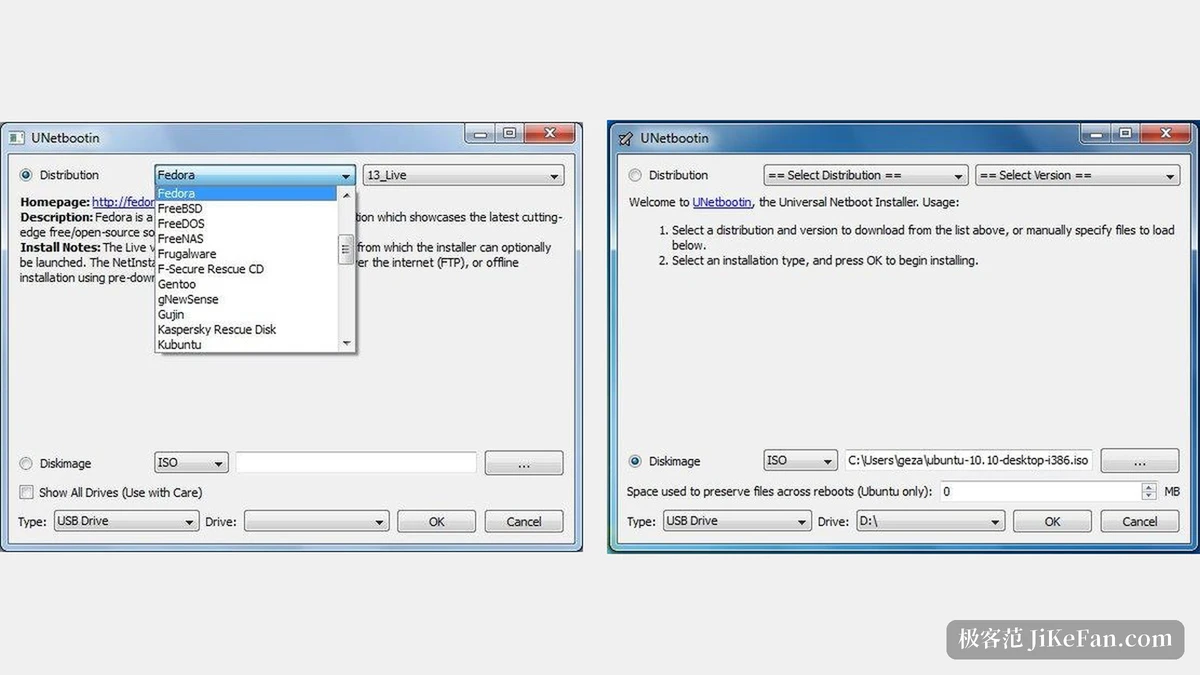
Distributions outside the list still have a way in. The section on installing other distributions explains the mechanism: the write process does not depend on rules specific to one distribution, so most Linux images load normally through the supply your own image road. The boundaries are stated just as clearly. Some distributions lack the ability to boot from a USB stick at all, some need extra boot parameters, and images of that kind will not start when written as they are. Non Linux systems boot by a different mechanism and cannot be tried against the same expectation.
The write split into four steps
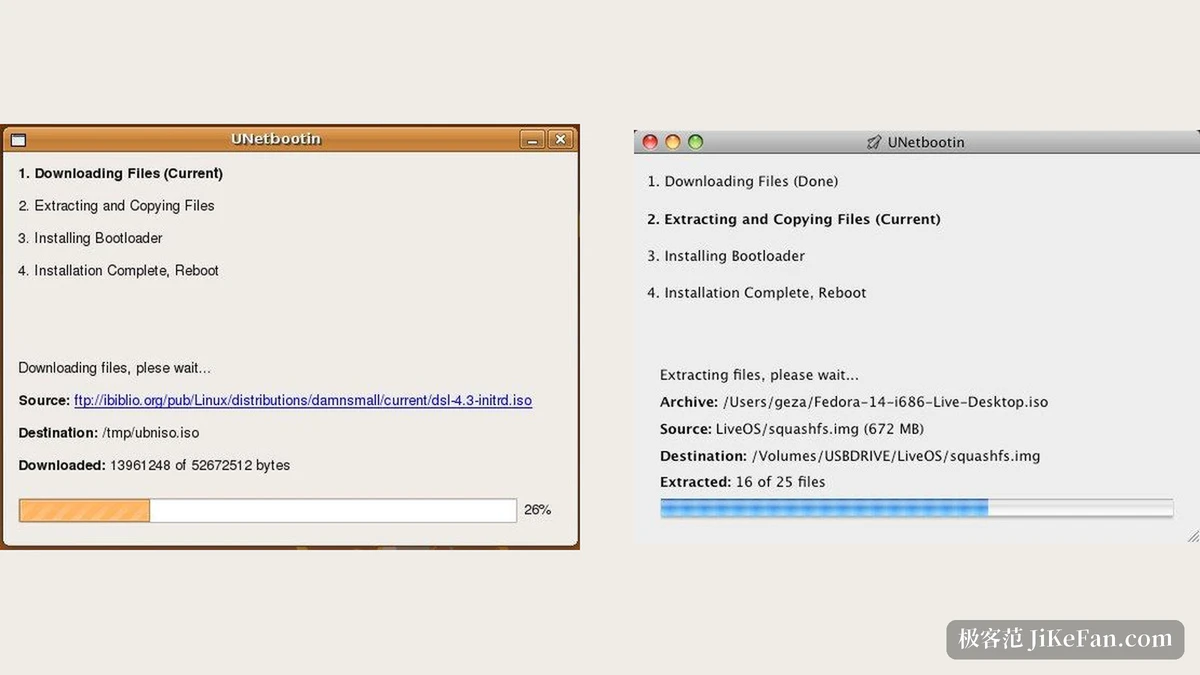
Once confirmed, the progress window breaks the work into four steps: download the file, extract and copy, install the bootloader, finish and restart. The step in progress carries a Current marker in the title line, and finished steps are marked Done.
Each panel lays its intermediate state open. The download stage shows the mirror address, the path on disk, the bytes received against the total, and a progress bar with a percentage underneath. The extraction stage lists the archive path, the name and size of each object being taken out, the destination path, and the count of processed files against the total. Showing all of this looks clumsy today, and it is extremely useful when something goes wrong: if the write fails, the step it failed at is right there.
One field in the interface is easy to overlook: the space reserved for files kept across restarts, in megabytes. The label notes where it applies, and the option works on the Ubuntu family. The default is zero, meaning nothing is kept. Give it a number and the stick holds an area that survives a restart, for preferences and temporary files.
Three platforms, a command line and plugins
The supported systems are listed generously: Windows 2000 and above, Linux, and Mac OS X 10.5 and above. Each platform gets its own installer, the site lists them separately, and the Linux side adds a source archive. On the result, the site adds one limit: the stick produced boots PC machines, and Mac machines are not included.
Below the graphical interface sits a command line. The documented options cover needs such as naming the target drive and switching the interface language: the target can be named by parameter and the language forced with a two letter code. For anything headed into an automation script, that layer is more reliable than pointing and clicking.
One layer further down are plugins. The project documents both writing and using them, and keeps a list of custom builds that collects the variants the community has made from it. That mechanism is how a tool shaped more than a decade ago still gets pushed into new situations today.
Licence, author and the pace of upkeep
UNetbootin is written by Geza Kovacs and released under the GNU General Public License version 2 or later. The site materials, documentation, screenshots and logo carry a separate Creative Commons Attribution ShareAlike 3.0 licence, so the two are written apart and the line between them is clear. The source lives on GitHub, with a source archive also offered. Interface translations are maintained by the community across two platforms.
The pace of upkeep deserves a straight sentence. The official release is 7.02, whose release record stops in February 2021, and the download links for all three platforms still point at that version, while the code repository saw commits as late as August 2024. In other words the feature set settled long ago, and recent years brought occasional patches rather than releases. For a tool that does one narrow thing thoroughly, that state is not necessarily bad, but anyone expecting it to keep pace with newly issued distributions and hardware should lower the expectation.
Putting a system on a stick was novel more than a decade ago and is now basic practice for installation and operations. UNetbootin never widened its scope, and what it holds is the short path: pick a distribution or an image, pick a drive, write it and restart. The list will age and boot parameters will fall behind new kernels, but that four step flow and the built in list remain a very plain lesson in how a boot stick is actually made.