
Rufus 4.15: 1.9MB that turns an ISO into a boot stick
Summary
Rufus 4.15 is a portable 1.9MB writer that turns an ISO into a bootable USB stick, and it repairs an ARM64 boot crash plus a multi-WIM loop.
Recommend- Name
- Rufus
- Version
- 4.15
- Pricing
- Free
- Open source
- Open source
- Operating system
- Windows
- Website
- https://rufus.ie/
- Updated
- 2026-11-10 23:00
Rufus is a bootable-USB writer for Windows. It puts an ISO or IMG image onto a USB stick so a machine with no system can start from it, whether the job is installing Windows, flashing firmware or running a rescue tool. Nothing gets installed: the download is one executable of about 1.9MB, published under GPLv3, and it runs on Windows 8 and newer. The current stable build is 4.15, released on 30 June 2026, with a 4.16 test build following on 30 October.
One job, done carefully
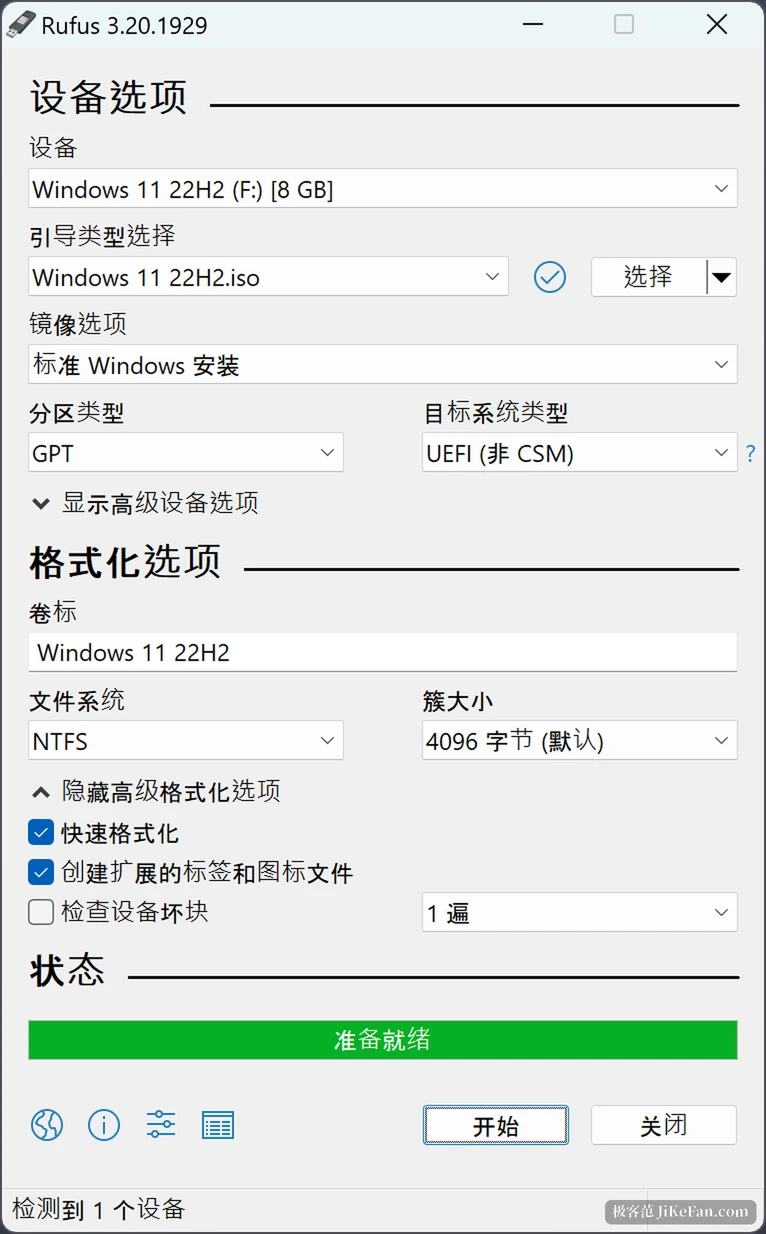
The window holds three blocks from top to bottom: device, boot selection, format options. Plug in a stick and Rufus usually picks up the drive letter itself. Choose an image with SELECT and leave the rest at its defaults.
- Device
- The stick or disk to write, usually detected once it is plugged in
- Boot selection
- The image to write, plus UEFI or BIOS as the boot mode
- Format options
- Partition scheme, file system and cluster size
When the defaults do not fit, the options are there. Partition type switches between GPT and MBR, the target system takes UEFI or BIOS, and the file system offers FAT32, NTFS and exFAT with an adjustable cluster size. Three checkboxes follow: quick format, create extended label and icon files, check the device for bad blocks. For older hardware that refuses to see the stick, the advanced section carries a switch that patches an old BIOS.
A status bar tracks progress in real time, and the write can be cancelled whenever you like instead of waiting it out.
4.15 fixes real defects
Read the change list and it looks like a patch log rather than copy. UEFI:NTFS gains RISC-V 64 support. The protection around the silent-install option was tightened so it cannot be switched on by accident. A write retry can now be cancelled midway, and progress while decompressing an image reports more accurately.
The bugs are the more interesting half. ARM64 machines built on Snapdragon X crashed when booting through UEFI:NTFS, and that is gone. Windows images holding several WIM files fell into an endless loop, also fixed.
An ezxml parser flaw involving XML entity expansion and integer overflow counted as a security issue and is patched in the same build. The Windows customization dialog used to arrive with its first option always ticked; it now behaves.
Writing Windows 11 gets one extra question
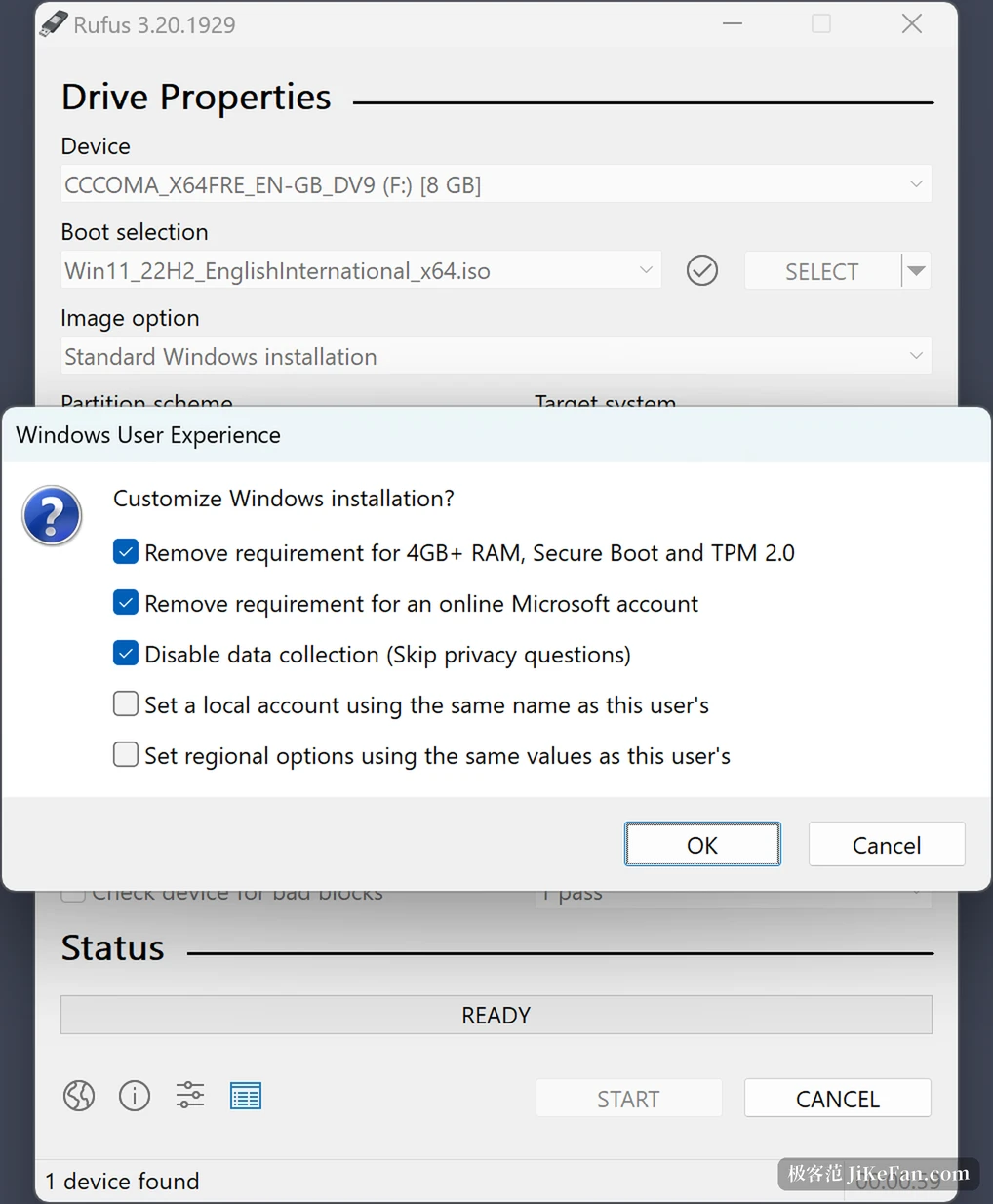
Pick a Windows 11 image, press start, and a window called Windows User Experience asks whether the install options should be changed. The checkboxes matter: drop the 4GB memory, Secure Boot and TPM 2.0 requirements, drop the demand for an online account, turn off data collection and skip the privacy prompts, build a local account from the current user name, keep the regional settings of the machine.
Anyone whose hardware is missing from the official support list, or who refuses a forced account, comes for exactly this. The cost belongs in the same paragraph. A system installed past the hardware checks may fall behind on later feature updates and official support, so decide before the write, not after.
Linux images can carry a persistent partition
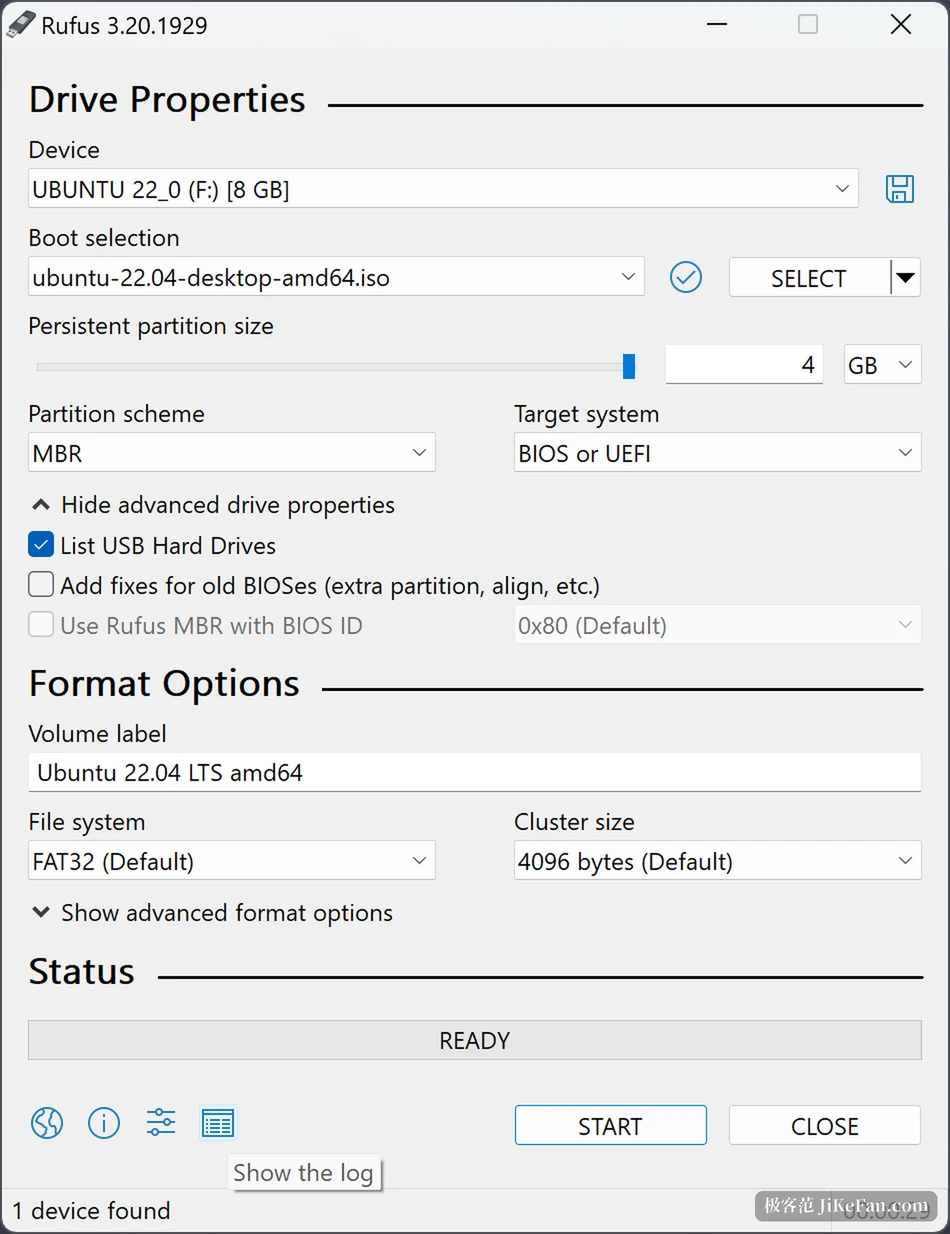
With Ubuntu and its relatives the window grows a slider for a persistent partition. Give it a few GB and the finished stick stops being a read-only boot medium: after a reboot the files, settings and installed programs are still there, a system that fits in a pocket. The size is yours to set against the capacity of the stick, and whatever you allocate is what it takes.
Two things to know first
First, the device dropdown lists every writable disk, not only USB sticks. Portable drives and even an internal SSD can appear there, and a wrong pick erases the data with no second confirmation. With several disks attached, read the capacity and the letter before clicking.
Second, the vocabulary is technical. Cluster size, partition scheme and target system confuse a first run. In practice the defaults cover nearly everything: GPT with UEFI on a new machine, MBR with BIOS on an old one, and the rest left alone.
Rufus itself is free, carries no advertising and keeps no feature behind a payment. Images are yours to supply, and the language list on the official site includes Simplified Chinese, so the interface needs no guessing.