
PixWit 1.19.1 rebuilds its UI and reaches the Mac
Summary
PixWit 1.19.1 rebuilds its interface and reaches the Mac: captures go straight to recognition, recordings get trimmed in place, and the code stays open source.
Recommend- Name
- PixWit
- Version
- 1.19.1
- Pricing
- Free
- Open source
- Open source
- Operating system
- WindowsmacOS
- Website
- https://pixwit.cn/
- Updated
- 2026-11-09 16:57
Screenshots, arrows and boxes, screen recording, text pulled out of a picture, and trimming the dead seconds off a recording: on most desks those five jobs live in three or four different programs. PixWit is a capture and recording tool that puts them in one chain. Press F1, drag a region, mark it up, save it. Press F3, record, then cut without opening another window. Version 1.19.1, released on 31 October, rebuilds the interface and, for the first time, ships a macOS build.
A strip against the edge, F1 to shoot
The main window is a vertical strip pinned to the edge of the screen, 60 pixels wide by default, always on top, and it retreats to the tray the rest of the time. F1 fires on whichever monitor the cursor sits on, so a multi-screen desk or a mixed DPI setup need not drag the window back first.
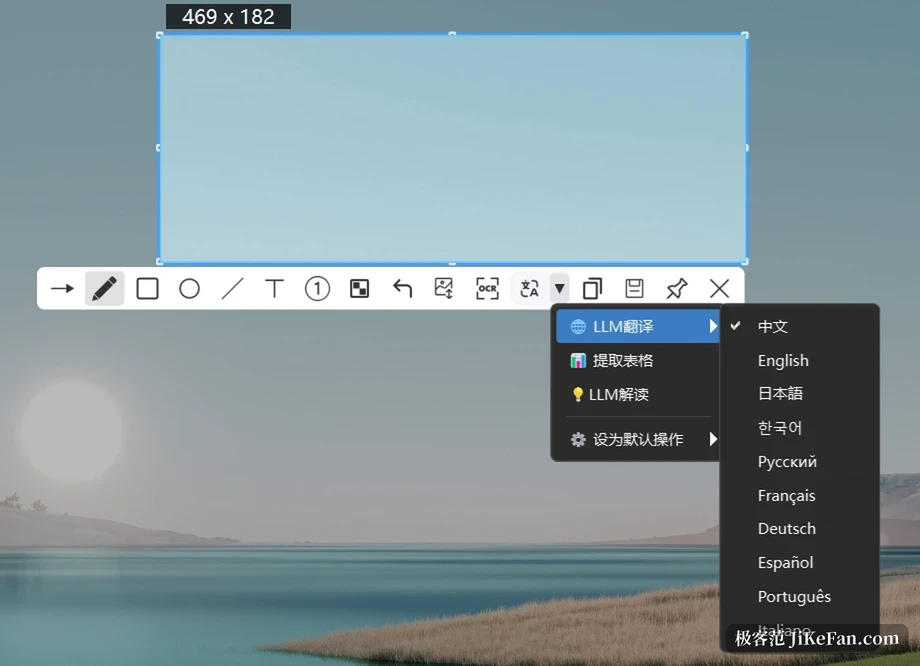
Once a region is drawn the toolbar floats up beside it: arrow, pen, rectangle, ellipse, line, polyline, text, numbering, mosaic and spotlight, and the buttons can be put in any order. Besides freehand selection there are fixed ratios such as 1:1, 4:3 and 16:9, and a stamp mode that grabs an exact size such as 1920x1080.
One item is unusual: UI element detection. Switch it on and it frames the window, or the individual controls inside it. Tab moves between window-only and element-only, the wheel steps through stacked layers, and the chosen layer is remembered. For a walkthrough, that beats dragging a box by hand.
History, pinned shots, and finding a picture by the words inside it
Every capture lands in history, one click from the tray, grouped into today, yesterday, this week and older, with favourites and filters. The genuinely useful part is search by text that appeared in the shot, provided the OCR index was left running. Hunting for an old screenshot whose contents you remember is far quicker this way than walking a folder tree.
Pinning is the other habit: the shot sits above everything, borderless, scalable from 10 percent to five times, opacity on Ctrl plus the wheel, double-click to copy and dismiss. Ctrl+Shift+V drops an image from the clipboard at the cursor, and pressing it again pages back through earlier ones.
Ctrl+O: recognition instead of a round trip
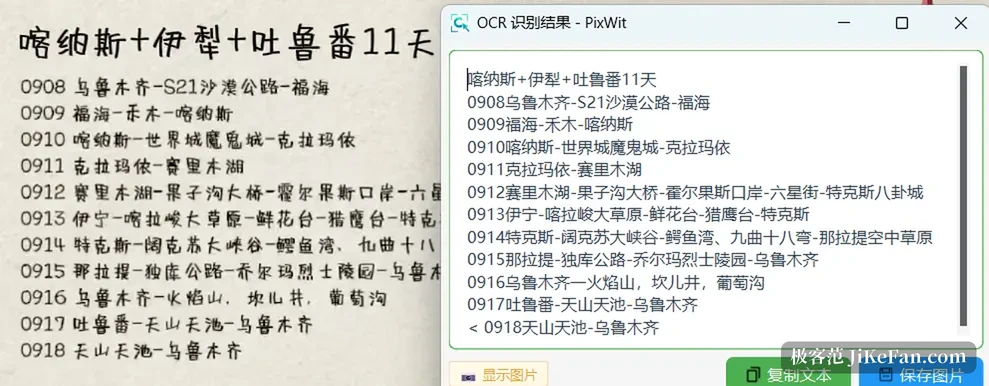
Ctrl+O is a second path through the same capture. The shot skips the editor and goes straight to recognition. Several engines can be enabled at once and the order is fixed: the local model first, PixWit AI second, a Baidu OCR key of your own last.
The local route deserves a note of its own. A tiny model ships inside the package; a small model can be downloaded for better accuracy and then works with the network switched off. Contracts and quotes can stay on the machine. The result drops into the clipboard, and clicking any line in the result window copies just that line.
Translations laid back on the image, tables pasted into a spreadsheet
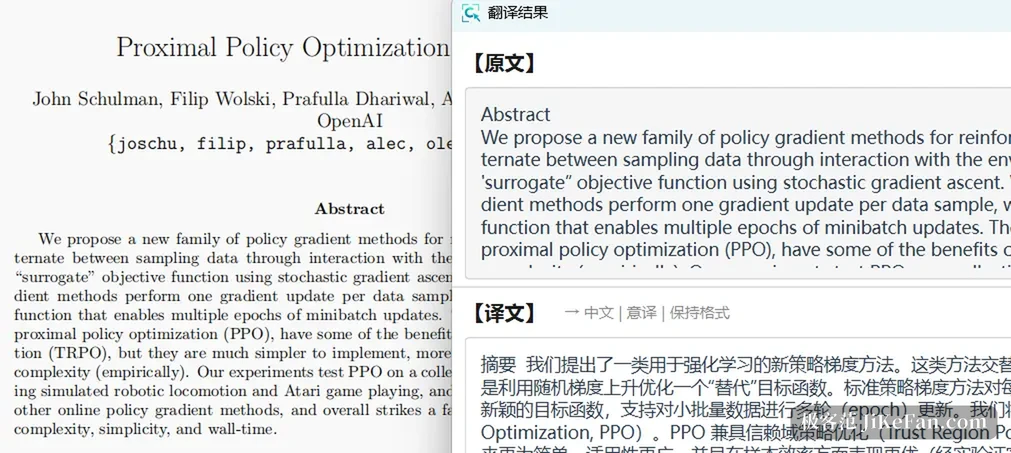
Image translation covers 10 target languages with three styles: literal, free and localised. In text mode the source and the translation sit in two columns and both are editable. In image mode each translated block is laid back over the original, draggable and resizable, and on save the text is burned into the picture with a Translation prefix on the filename so the pair never gets mixed up.
Table extraction takes a different shortcut. After recognition the clipboard receives plain text and HTML at the same time, so pasting into a spreadsheet keeps rows, columns and merged cells without going through paste-special. A failed recognition leaves the previous clipboard contents untouched and says where it went wrong.
Recording: two audio tracks, and drawing while it runs
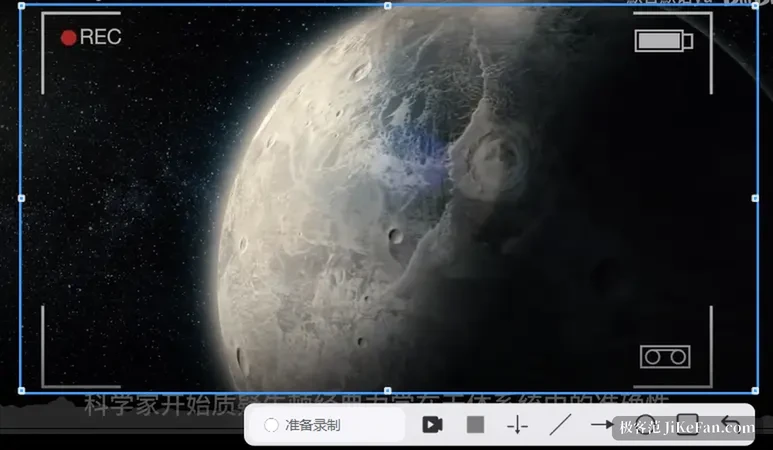
F3 starts a recording after a three-second countdown that a second press cancels. The scope is a region or the full screen, paused time is not counted, and the output is MP4, MKV or GIF. System sound and microphone can be captured together with independent levels, or one of them, or neither.
Annotation works while the recording runs, but the mouse passes through by default. With no tool selected the desktop behaves normally, so a recording never freezes the pointer. With a tool in hand, Alt plus I, J, O and K draw a line, an arrow, a circle and a rectangle. A full-screen recording can pin the camera into the corner as picture-in-picture, and wherever the preview window is dragged is where it lands in the finished file.
The editor lives in the same window
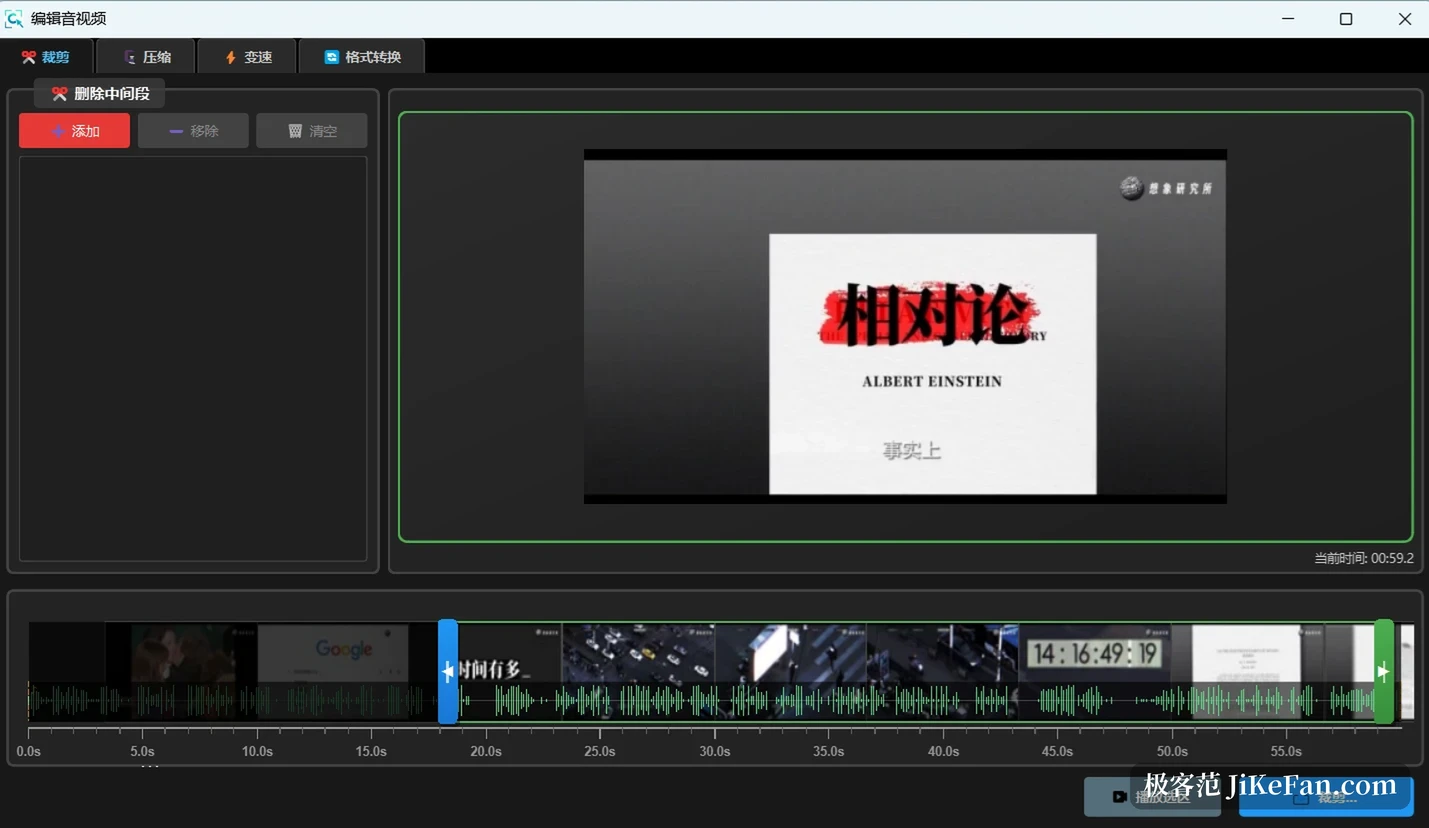
When the recording stops, a prompt offers the editor directly. The timeline zooms past ten times, thumbnails and the audio waveform sit on the track, and trimming the ends or cutting a middle section and rejoining happens right there. A single-cut trim is a lossless copy, not a re-encode.
Compression offers three steps and the top one is quoted at roughly seventy percent smaller. Speed runs from 0.5x to 3x without touching the frames themselves, plus GIF conversion, a voice-over, and splitting the audio into chunks. The GIF side has frame-by-frame editing and detection of repeated neighbouring frames, which is enough for a demonstration clip.
What 1.19.1 actually changed
Its changelog is plain and lists three things. First, the interface was rebuilt. Second, the screenshot toolbar's interaction logic was adjusted, so corner radius, border opacity, font opacity and background opacity are now adjustable, and a double-headed arrow was added. Third comes Mac support.
Those two sound small and are not: the corner radius used to be fixed, so matching a house style meant retouching afterwards, and a translucent background under dark text often turned into a grey smear.
The Mac build, and where it stops
The macOS version asks for 14 or newer and arrives as an Apple Silicon package, with nothing for Intel machines yet. The differences are printed on the download page rather than buried: no video editing or GIF frame editing, no MKV output, no microphone recording. Capture, OCR, translation and table extraction match the Windows build.
Mac users get the whole capture-and-recognise half of the chain today and the video half later. The project says so on the page instead of in a footnote.
PixWit's macOS build requires macOS 14 or newer and ships for Apple Silicon only; video editing, GIF frame editing and MKV output are not part of it yet.
Whether it is worth switching
There is no login, no advertising, no in-app purchase and no account to create. The code is published under GPL-3.0, mirrored on two code hosts, with a few hundred stars between them. All 16 global shortcuts can be remapped, and a shortcut already claimed by another program raises a conflict notice in the tray instead of failing quietly.
Two warnings come with it. The author has not bought a code-signing certificate, so some antivirus products may flag the build, and the download page says as much. The portable build needs no administrator rights and can be deleted cleanly afterwards.
For a day of screenshots, marking, pulling out text and a short demo, one window is a real saving: no several-hundred-megabyte editor opened just to cut three seconds off a clip.