
PowerToys adds a mouse button lock and single key remaps
Summary
PowerToys adds a mouse button that stays pressed, a cursor that hides while you type, and single press key remaps, with two utilities moving to WinUI 3.
Recommend- Name
- PowerToys
- Version
- 0.102.3101
- Pricing
- Free
- Open source
- Open source
- Operating system
- Windows
- Updated
- 2026-11-09 16:57
PowerToys is a free, open-source set of utilities for Windows, maintained by Microsoft, and it holds more than 30 small tools that switch on and off one by one. The 0.102 line replaces part of the interface framework and smooths a few places on the keyboard and the mouse that had been awkward for years.
What the update adds
The stable build arrived on 2026-10-21, and two patches followed. Version 0.102.3001 on 2026-10-27 fixed crashes in File Locksmith and Quick Accent. Version 0.102.3101 on 2026-11-04 dealt with File Explorer thumbnails that hung, SVG requests that interfered with each other, and Mouse Without Borders failing to pair.
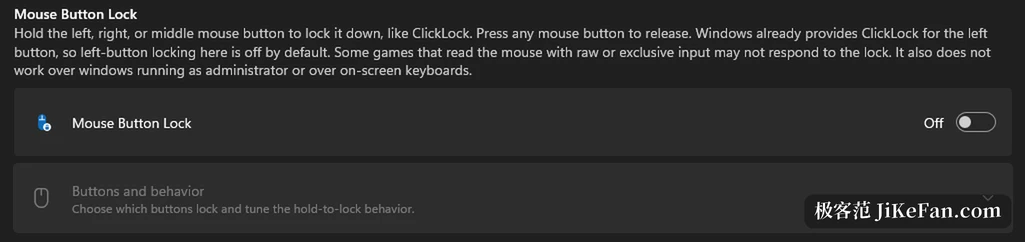
Two mouse utilities are new. Mouse button lock handles the long press: hold a button for a moment and let go, and the system still treats it as held, so a drag or a box selection keeps going until any key is clicked. Spreadsheets, range selections and games all gain from it, and for anyone with limited hand mobility it counts for more. Cursor hide drops the pointer while you type or after an idle stretch, and restores it the moment the mouse moves.
Remaps that fire on a single press
The Keyboard Manager used to map one key to another key or to a combination. A third trigger arrived with this release. Press a key on its own to run an action, and let the same key keep working inside combinations; the two do not collide. For anyone who wants an idle key to earn its place, that beats moving a binding around.
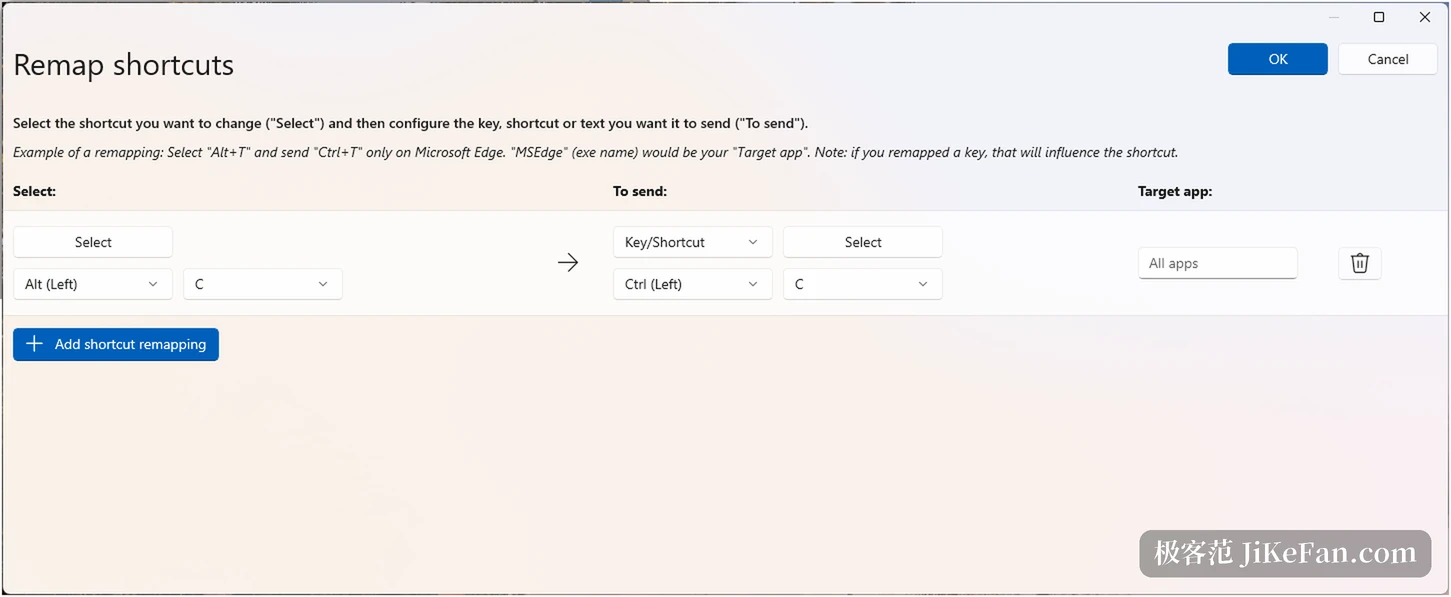
Managing a long list of remaps got easier as well. The list now offers search, filters by modifier and by application, and bulk deletion. The key picker inside the editor is searchable and accepts media keys and keys that are not on the keyboard at all, so a whole combination can be assembled with the mouse. Recording only runs while the editor holds focus, and Tab moves focus out of the recording box.
Managed fleets get one more item: remap configurations can be deployed and exported through DSC v3, so an administrator no longer walks from machine to machine by hand.
Part of the interface framework is new
Color Picker and Text Extractor moved to WinUI 3, the framework behind native interfaces on Windows 11. Color Picker had its overlay, editor and magnifier rewritten, and existing shortcuts and settings carry over on their own. Text Extractor was the harder case. It leaned on a transparent overlay that WPF provided, and the new framework has no equivalent, so the team builds one borderless window per monitor and redid positioning under mixed scaling.
The move shows little in the short term. Its effect sits in maintenance and in download size. PowerToys carries WPF, WinForms, C++ and WinUI 3 side by side, and one framework is easier for a new contributor to follow. The installer also stops packing the same runtime twice. Launcher and some window management modules stay on the older framework, on purpose, to keep the plugin ecosystem intact.
Smaller changes elsewhere
Command Palette gained a quick access shelf. With the palette collapsed, pinned items sit under the search box, Alt+1 through Alt+9 launch them, and adding Shift only selects. Its settings page supports fuzzy search and jumps straight to an extension, an alias or a hotkey. Workspace asks before it starts an unverified program that needs administrator rights. Awake can turn the display off on the lock screen without breaking its awake state. The Environment Variables editor gained an action that removes duplicates while keeping the original order.
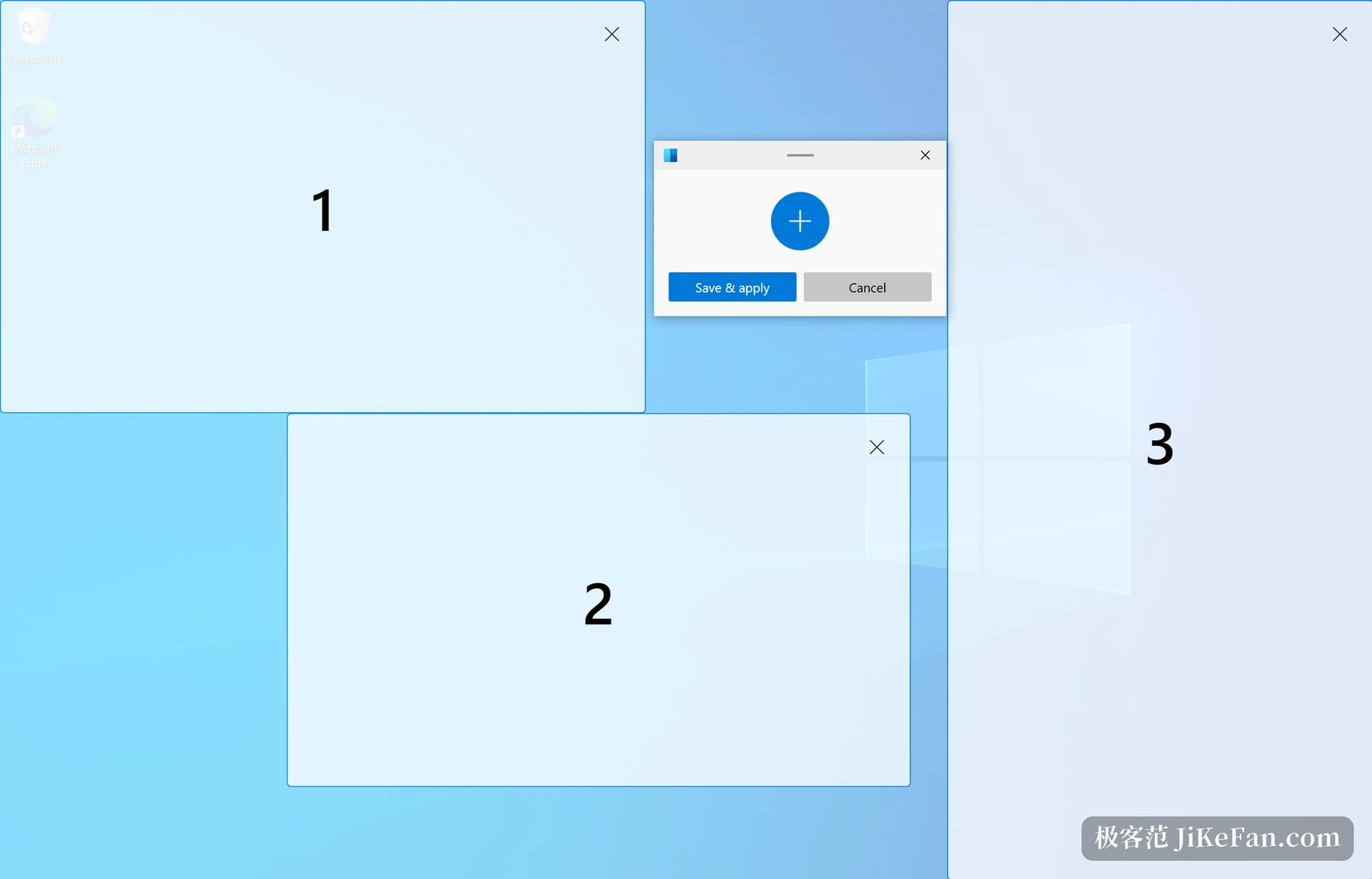
On the command line, Advanced Paste, Light Switch, Settings, Peek and Power Display now expose commands, and FancyZones, Image Resizer, File Locksmith and Power Display were added to PATH, so scripts can call them directly. Older modules saw scattered work too; dragging a window and turning the wheel now switches zones, for example.
Specs and a way to start
PowerToys ships under the MIT licence at no cost. It runs on Windows 11, or on Windows 10 version 2004 and newer, in x64 and ARM64 builds.
- Current version
- 0.102.3101, released on 2026-11-04.
- Licence
- MIT, free to use.
- System
- Windows 11, or Windows 10 version 2004 and newer.
- Architecture
- x64 and ARM64.
- Modules
- More than 30, each with its own switch.
Switch on the modules you actually need instead of enabling everything. FancyZones, PowerRename and Text Extractor see daily use in most setups. Leave the rest off until a real problem appears, and the settings page stays readable. If one module misbehaves after an update, check its toggle first and then look for a separate release note.
The worth of a toolkit is not the number of tools in it. It is that each one can be turned off, so the desktop ends up holding what you use and nothing else.