
Birth Review: A Free Manager That Shows Who Installed Every macOS Startup Item
Summary
Birth is a free, open-source manager for macOS startup items. It gathers background items, daemons and login items on one screen, labels each with its signing identity and live state, flags impostors, and keeps a backup before anything is removed.
Recommend- Name
- Birth
- Version
- 0.2.11
- Pricing
- Free
- Open source
- Open source
- Operating system
- macOS
- Updated
- 2026-11-02 16:11
When a Mac starts slowly or drains its battery while closed, the usual cause is not old hardware but a pile of background items. Birth collects entries hidden in four places onto one screen, so you can see who installed each one, whether it is signed and whether it is running.
Startup items never live in one place
macOS splits them across at least four mechanisms. Per-user background items sit in the user library under LaunchAgents, machine-wide ones sit in the same folder at the root of the system volume, helpers that need root live in LaunchDaemons, and the apps that open by themselves after login belong to the login item list. The system settings merge the first three into one vague entry called background items, and the fourth is listed without a path and without detail.
What the settings leave out is exactly what matters: where the property list file actually is, which binary it points at, and who signed that binary. Updaters for third-party software, helper processes and leftovers from applications that were deleted all survive on this opacity. Birth lifts the layer. Entries from the four sources sit side by side in one window, third-party items show by default, and the Apple ones fold away with a single control.
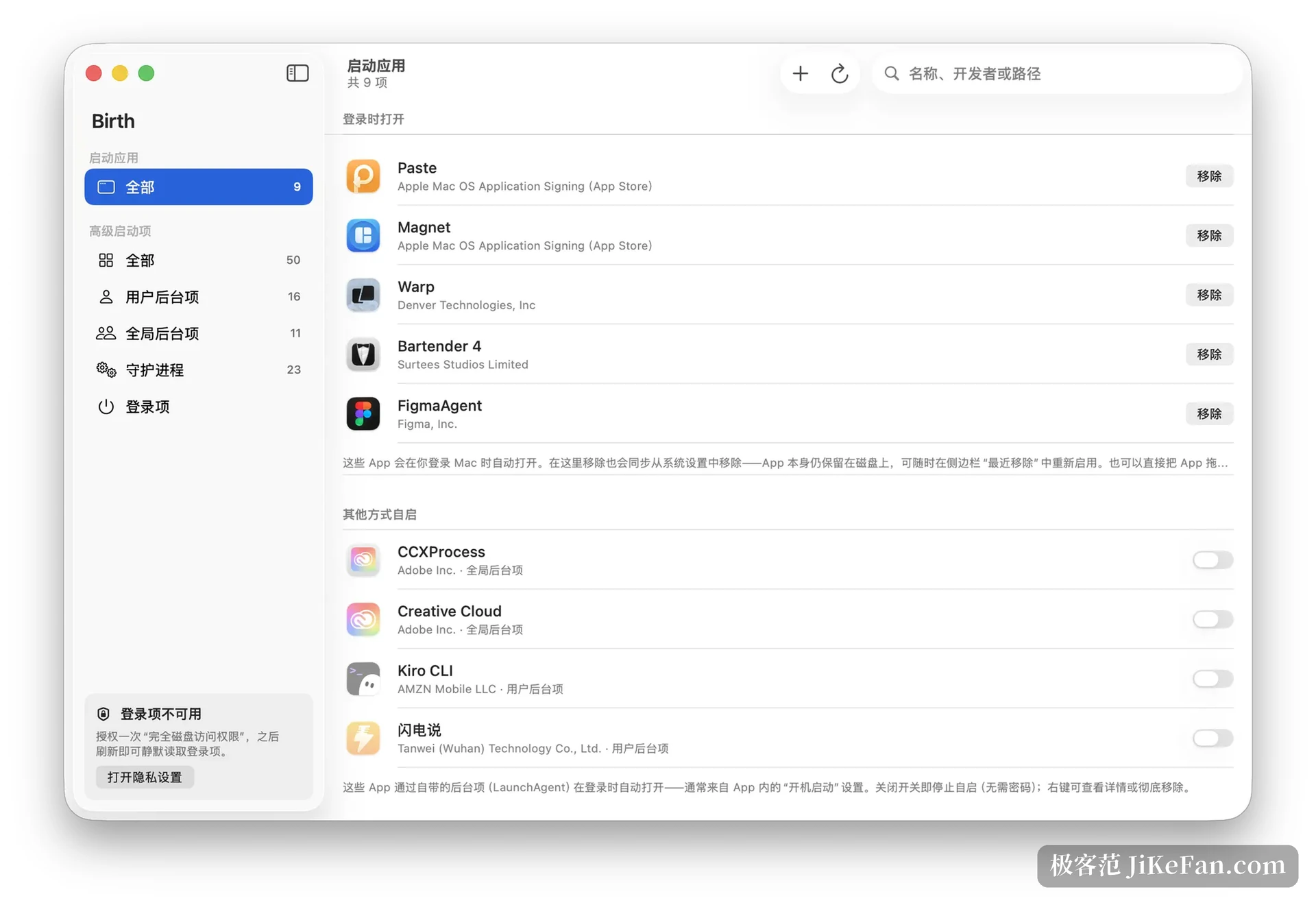
It tells you who signed it, not just that it exists
Each entry is checked against the certificate chain, and the result is one of seven identities: Apple itself, the App Store, an identified developer, an untrusted certificate, an ad hoc signature, unsigned, or a broken signature. That column carries more weight than it seems to. A name can be typed in freely; a signature is hard to fake.
Imitation detection goes further. Some entries write their identifier in the style Apple uses, posing as a system component, while the signature does not match; those get a red impostor mark. The documentation states plainly that this is the usual disguise for malware that wants to stay resident, and it bets on nobody opening a property list in the daemon folder that reads like something the system shipped.
The live state is listed as well. Per-user and machine-wide background items start and stop directly, without a password. Daemons go through the standard macOS administrator prompt, and there is no way around that.
Start from a strange process and work backwards
A process you do not recognise in the activity monitor used to mean walking up the parent chain. The search field accepts names, developers and paths, and it also accepts a process id: type the number and it answers which startup item launched that process. That is the shortest route when chasing something that keeps coming back, with no need to compare folder contents by hand.
The list itself filters by running state and by whether an item is enabled, all five column headers sort, and the choice of column and direction is remembered the way the file browser remembers it. Applications you removed do not vanish either: they stay under a recently removed section and can be added back in one click.
Before deleting, leave a way back
With something that lives close to the system, whether an action can be undone matters most. Removal is not a single click that ends it. The job is stopped first, the property list goes to the bin, and a copy is kept in the application support folder. A wrong click still has a place to be recovered from. A property list viewer is included as well, and a binary file is rendered as readable XML whenever you want to check the contents yourself.
Permissions are asked for when needed, not up front
Opening the startup apps page and reading the list needs no authorisation and shows no prompt, and browsing background items and daemons is the same. The first time a login app is added or removed, automation permission is requested once. The login items category needs full disk access granted once. Working with daemons asks for the administrator password every time. A missing permission does not break the app: the window says which one is absent and where to switch it on, refreshes by itself when you come back from system settings, and does not ask again afterwards.
Specifications
- Current version
- 0.2.11, released on 29 August 2026
- Requirements
- macOS 14 or later, universal binary
- Written in
- Swift, no third-party dependencies
- Licence
- MIT
- Size
- about 3.7 MB for the package
A few limits belong up front. This is a personal open-source project, it is not notarised by Apple and it uses an ad hoc signature, so full disk access and automation permission have to be ticked again in system settings after every upgrade; within one version an approval stays valid. The login items section can be read but not changed, because the system gives third-party apps no interface for toggling those entries, and the app can only offer a button that jumps to settings. The signature badge also proves who signed a file, not that the contents are untouched; integrity belongs to the system gatekeeper.
It will not decide for you what should be switched off. It puts the signature, the path, the process id and the source in front of you, and the last cut is still yours to make.